Video Compressor for Windows: Reduce Video File Size Without Losing Quality
You don’t have to delete videos to free up disk space.
Just compress them – your files stay right where they are, and the gigabytes disappear.
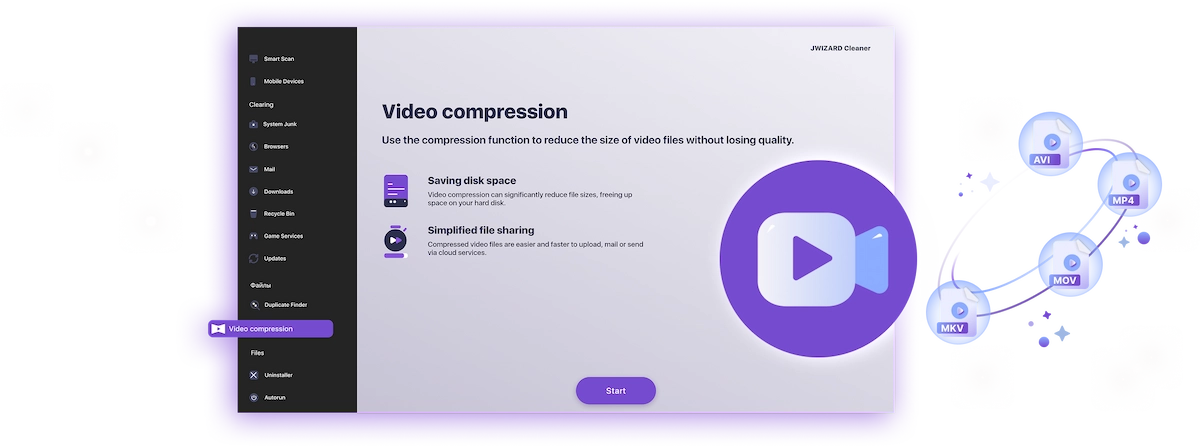
What Video Files Are Filling Up Your Windows Storage?
You probably don't notice your drive filling up until it's almost full. Video files are usually the culprit. Here's what takes up the most space:
- Gameplay recordings and streamsA single hour of 1080p footage runs 4–8 GB. A few gaming sessions, and your drive is packed.
- Videoclipuri de pe telefon4K clips can be 1–3 GB each. Move a few batches from your phone, and you're easily looking at dozens of gigabytes.
- Înregistrări de lucruWebinars, Zoom calls, screen recordings with slide decks. They pile up for months and are too important to delete.
- Personal video archivesVacations, holidays, years of family moments. Sitting untouched, but taking up serious real estate.
All of these files can be made 2–3x smaller – without deleting anything and without any noticeable loss in quality.
Gameplay recordings and streams
Videoclipuri de pe telefon
Înregistrări de lucru
Personal video archives

Why Compress Video on Windows?
A full drive on Windows isn't just an inconvenience. It slows down your entire system: apps take longer to open, updates fail to install, and there's no space left for temp files.
Most users don't realize that half their used storage can be recovered in minutes – just by running a video compressor.
And the compressed file is still fully usable: you can watch it, edit it, send it, or back it up to the cloud.
What video compression does for you:
- Frees up disk space – without deleting any files;
- Speeds up cloud uploads – Google Drive, OneDrive, Dropbox, and more;
- Makes sharing easier – gets around file size limits in messengers and email;
- Keeps Windows running smoothly – a full drive slows everything down.
Frees up disk space
Speeds up cloud uploads
Makes sharing easier
Keeps Windows running smoothly

How to Reduce Video Size on Windows: Your Options
Let's walk through the available methods – and why most of them are a hassle for the average user.
- Nothing to install;
- Works on any device;
- Simple interface.
- File size limit of up to 1 GB;
- Your video gets uploaded to a third-party server;
- Requires a stable internet connection;
- Free features are very limited
- Works locally on your machine;
- Flexible compression settings;
- No file size limits.
- Steep learning curve;
- Complicated interface;
- No built-in tool for finding your largest files.
- Full editing suite;
- Manual export settings.
- Compression is an afterthought, not the main feature;
- Require technical know-how;
- Heavy software, slow processing;
- Paid versions are expensive.

✅ JWIZARD Cleaner JWIZARD Cleaner handles video compression in just a couple of clicks: it automatically finds your largest files and processes everything locally – no technical knowledge needed, no file size limits.
How to Compress Video on Windows with JWIZARD Cleaner
Download and install JWIZARD Cleaner for Windows;
Open the "Video Compression" section from the main menu;
Select the folders to scan. The app will find all video files on your drives and display them;
Check the files you want to compress;
Choose a compression mode ("Lossless quality");
Click "Compress" and wait for it to finish. The app will then show you exactly how much space you've saved.;
Save the compressed video.
Alegeți modul potrivit pentru sarcina dvs.
| Mod | Cel mai bun pentru | Economie | Descriere |
|---|---|---|---|
Calitate fără pierderi(când calitatea contează cel mai mult) |
| Până la 50%Spațiu economisit | Calitate originală, fișier mai mic |
Echilibrat(când aveți nevoie de calitate și spațiu) |
| Până la 65%Spațiu economisit | Calitate înaltă, dimensiune redusă |
Compresie maximă(când spațiul este prioritatea) |
| Până la 75%Spațiu economisit | Dimensiune compactă, calitate bună |
De ce să alegeți JWIZARD Cleaner?
Funcționează pe Windows 10 și 11
Compatibilitate completă cu versiunile actuale ale sistemului.
Nu necesită configurare
Aplicația alege automat cele mai bune setări de codare.
Originalele dvs. sunt în siguranță
Fișierele nu sunt niciodată șterse automat. Dvs. decideți ce faceți cu materialul sursă.
Rulează în fundal
Puteți minimiza aplicația și să lucrați în continuare în timp ce videoclipul se comprimă.

De încredere pentru mii de utilizatori.
Peste 100 000 de persoane au ales JWIZARD Cleaner pentru a îmbunătăți performanța dispozitivelor lor. Alăturați-vă lor!
Feedback utilizatori JWIZARD Cleaner
Alte funcții JWIZARD Cleaner:
Curățare gunoi de sistem
Curățare date browser
Dezinstalator
Curățare dispozitiv Android
Descărcați JWIZARD Cleaner astăzi
Eliberați spațiu pe disc fără a șterge niciun videoclip!
Răspundem la întrebările dvs.:
Which compression mode should I choose if I don't know where to start?
"Balanced" is the way to go - it works well for most tasks. Quality stays high, and you free up 60-65% of the space. If the result looks good, stick with it.
What happens to the original file after compression?
How do I compress video without ruining the quality?
Can I compress video on Windows without installing any software?
Will the app change my video resolution without my permission?
Articole

Ce ar trebui să fac dacă aplicațiile nu se dezinstalează din Launchpad?
Aflați cum să rezolvați problema cu dezinstalarea unei aplicații din Launchpad. Acest articol oferă instrucțiuni pas cu pas și sfaturi utile pentru depanarea acestei probleme.

Cum dezinstalez o aplicație de pe Mac?
3 moduri de dezinstalare a aplicațiilor de pe Mac: comparați și alegeți-o pe cea care funcționează cel mai bine pentru dvs. Aflați cum să dezinstalați complet o aplicație de pe Mac și să eliberați spațiu pe disc.
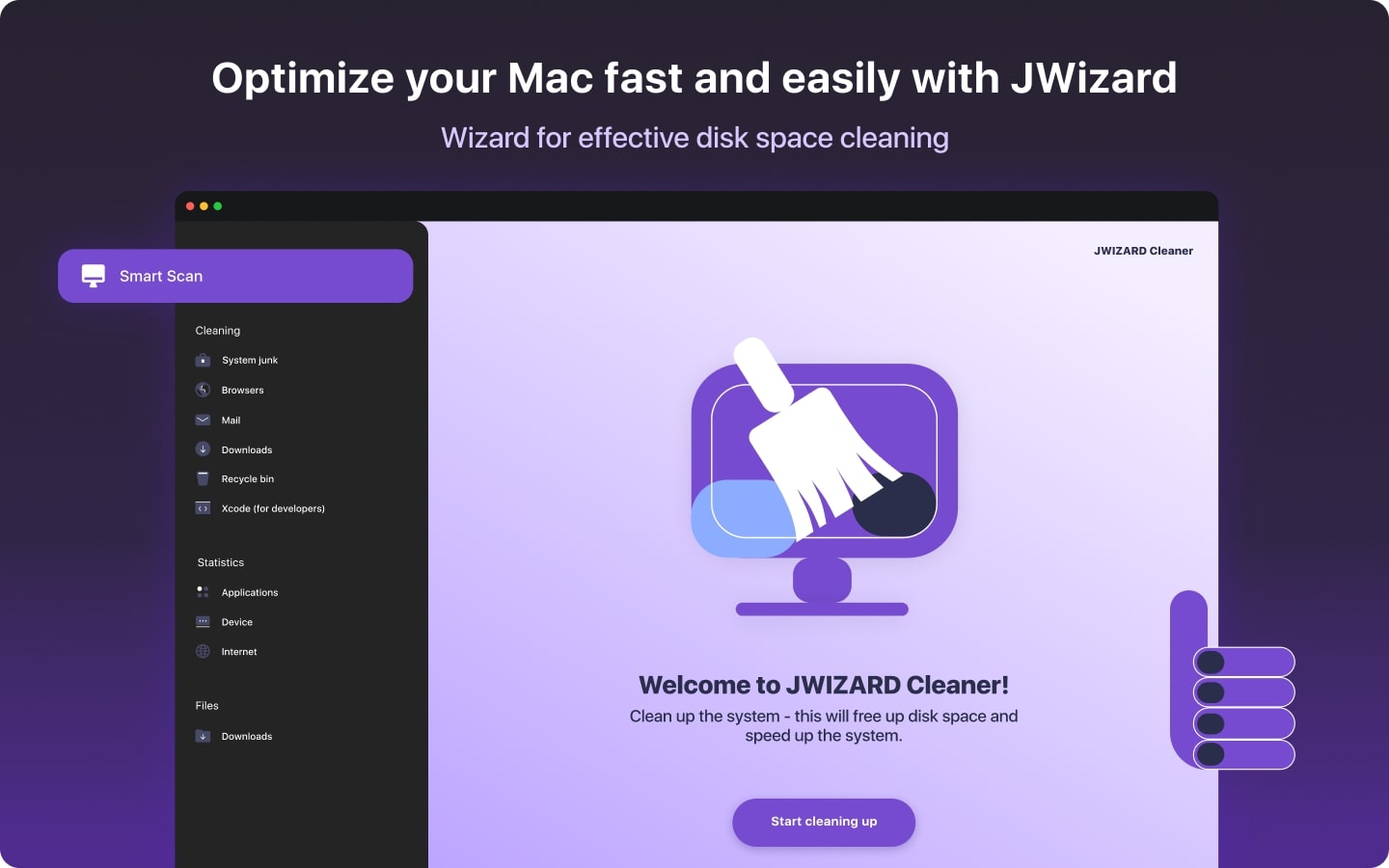
Eliberarea spațiului pe Mac: Cum șterg fișierele nedorite și îmi curăț discul?
Aflați cum să eliberați spațiu pe disc pe Mac utilizând metode manuale de curățare sau un program. Urmați sfaturile pentru a elibera spațiu și a îmbunătăți performanța.