Windows Video Sıkıştırıcı: Kalite Kaybı Olmadan Dosya Boyutunu Küçültün
You don’t have to delete videos to free up disk space.
Just compress them – your files stay right where they are, and the gigabytes disappear.
What Video Files Are Filling Up Your Windows Storage?
You probably don't notice your drive filling up until it's almost full. Video files are usually the culprit. Here's what takes up the most space:
- Gameplay recordings and streamsA single hour of 1080p footage runs 4–8 GB. A few gaming sessions, and your drive is packed.
- Akıllı telefon videoları4K clips can be 1–3 GB each. Move a few batches from your phone, and you're easily looking at dozens of gigabytes.
- İş kayıtlarıWebinars, Zoom calls, screen recordings with slide decks. They pile up for months and are too important to delete.
- Personal video archivesVacations, holidays, years of family moments. Sitting untouched, but taking up serious real estate.
All of these files can be made 2–3x smaller – without deleting anything and without any noticeable loss in quality.
Gameplay recordings and streams
Akıllı telefon videoları
İş kayıtları
Personal video archives

Why Compress Video on Windows?
A full drive on Windows isn't just an inconvenience. It slows down your entire system: apps take longer to open, updates fail to install, and there's no space left for temp files.
Most users don't realize that half their used storage can be recovered in minutes – just by running a video compressor.
And the compressed file is still fully usable: you can watch it, edit it, send it, or back it up to the cloud.
What video compression does for you:
- Frees up disk space – without deleting any files;
- Speeds up cloud uploads – Google Drive, OneDrive, Dropbox, and more;
- Makes sharing easier – gets around file size limits in messengers and email;
- Keeps Windows running smoothly – a full drive slows everything down.
Frees up disk space
Speeds up cloud uploads
Makes sharing easier
Keeps Windows running smoothly

How to Reduce Video Size on Windows: Your Options
Let's walk through the available methods – and why most of them are a hassle for the average user.
- Nothing to install;
- Works on any device;
- Simple interface.
- File size limit of up to 1 GB;
- Your video gets uploaded to a third-party server;
- Requires a stable internet connection;
- Free features are very limited
- Works locally on your machine;
- Flexible compression settings;
- No file size limits.
- Steep learning curve;
- Complicated interface;
- No built-in tool for finding your largest files.
- Full editing suite;
- Manual export settings.
- Compression is an afterthought, not the main feature;
- Require technical know-how;
- Heavy software, slow processing;
- Paid versions are expensive.

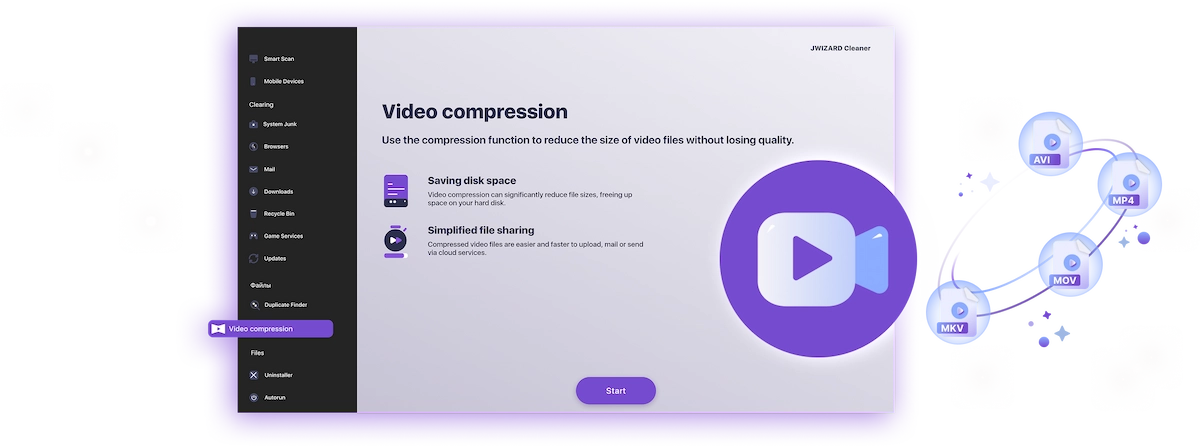
✅ JWIZARD Cleaner JWIZARD Cleaner handles video compression in just a couple of clicks: it automatically finds your largest files and processes everything locally – no technical knowledge needed, no file size limits.
How to Compress Video on Windows with JWIZARD Cleaner
Download and install JWIZARD Cleaner for Windows;
Open the "Video Compression" section from the main menu;
Select the folders to scan. The app will find all video files on your drives and display them;
Check the files you want to compress;
Choose a compression mode ("Lossless quality");
Click "Compress" and wait for it to finish. The app will then show you exactly how much space you've saved.;
Save the compressed video.
Görevinize uygun modu seçin
| Mod | En iyi kullanım | Tasarruf | Açıklama |
|---|---|---|---|
Kayıpsız kalite(kalite en önemli olduğunda) |
| % 50'ye kadarKazanılan alan | Orijinal kalite, daha küçük dosya |
Dengeli(kalite ve alan gerektiğinde) |
| % 65'e kadarKazanılan alan | Yüksek kalite, küçük boyut |
Maksimum sıkıştırma(depolama öncelik olduğunda) |
| % 75'e kadarKazanılan alan | Kompakt boyut, iyi kalite |
Neden JWIZARD Cleaner?
Windows 10 ve 11'de çalışır
Mevcut sistem sürümleriyle tam uyumluluk.
Yapılandırma gerektirmez
Uygulama otomatik olarak en iyi kodlama ayarlarını seçer.
Orijinalleriniz güvende
Dosyalar asla otomatik olarak silinmez. Kaynak materyalle ne yapacağınıza siz karar verirsiniz.
Arka planda çalışır
Uygulama simge durumuna küçültüp video sıkıştırılırken çalışmaya devam edebilirsiniz.

Binlerce kullanıcının güvenini kazanmıştır.
100 000'den fazla kişi cihazlarının performansını artırmak için JWIZARD Cleaner'ı seçti. Siz de katılın!
JWIZARD Cleaner kullanıcı yorumları
Diğer JWIZARD Cleaner özellikleri:
Sistem çöpü temizleme
Tarayıcı verilerini temizleme
Kaldırıcı
Android cihaz temizleme
JWIZARD Cleaner'ı bugün indirin
Tek bir video silmeden disk alanı açın!
Sorularınızı yanıtlıyoruz:
Which compression mode should I choose if I don't know where to start?
"Balanced" is the way to go - it works well for most tasks. Quality stays high, and you free up 60-65% of the space. If the result looks good, stick with it.
What happens to the original file after compression?
How do I compress video without ruining the quality?
Can I compress video on Windows without installing any software?
Will the app change my video resolution without my permission?
Makaleler

Uygulamalar Launchpad'den kaldırılmıyorsa ne yapmalıyım?
Launchpad'den bir uygulamayı kaldırma sorununu nasıl çözeceğinizi öğrenin. Bu makale, bu sorunu gidermek için adım adım talimatlar ve yararlı ipuçları sağlar.

Mac'imdeki bir uygulamayı nasıl kaldırırım?
Mac'inizdeki uygulamaları kaldırmanın 3 yolu: karşılaştırın ve sizin için en uygun olanı seçin. Mac'inizden bir uygulamayı nasıl tamamen kaldıracağınızı ve disk alanını nasıl temizleyeceğinizi öğrenin.
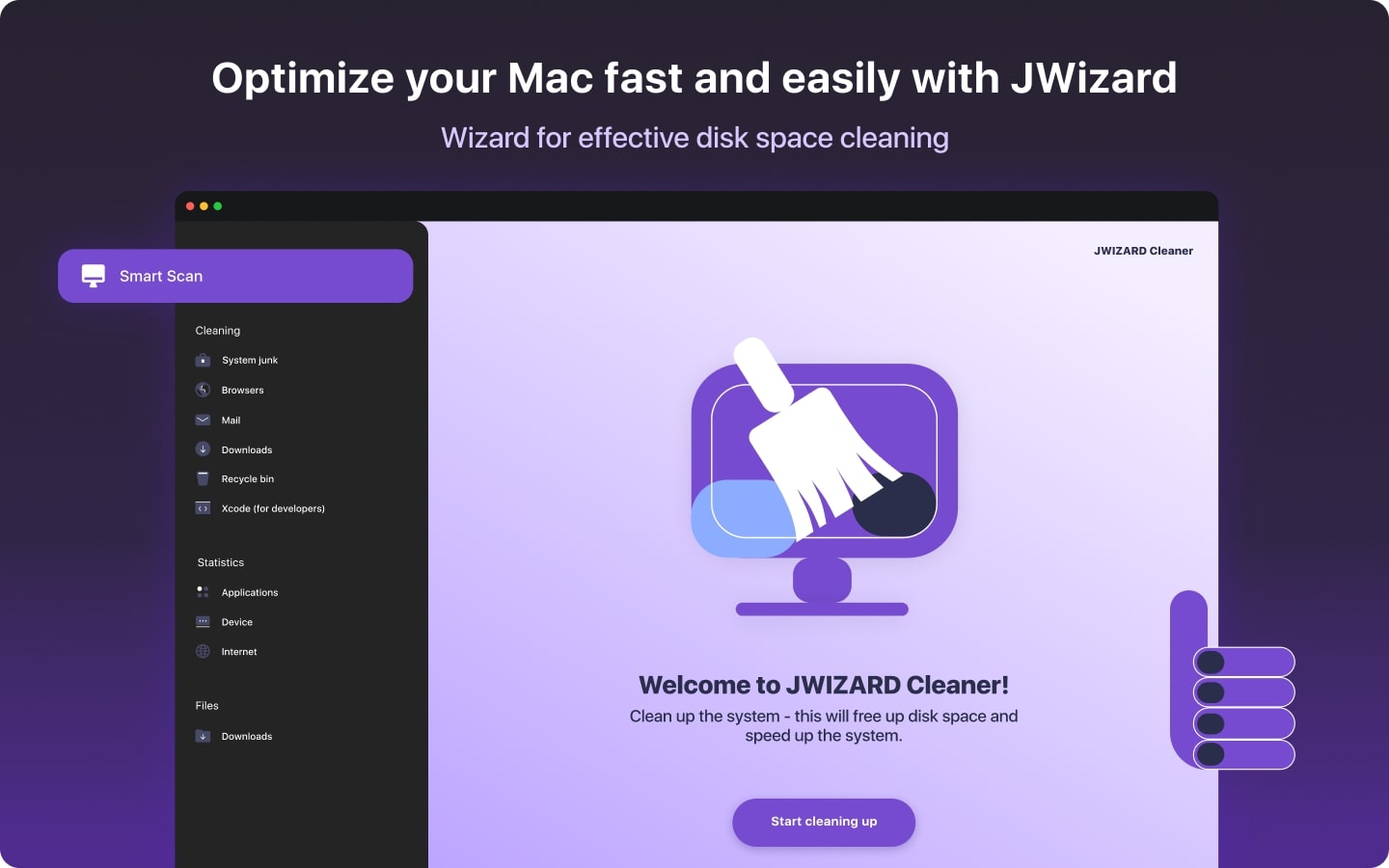
Mac'inizde yer açma: Gereksiz dosyaları nasıl silerim ve diskimi nasıl temizlerim?
Elle temizleme yöntemlerini veya bir programı kullanarak Mac'inizde disk alanını nasıl temizleyeceğinizi öğrenin. Yer açmak ve performansı artırmak için ipuçlarını izleyin.