Windows用ビデオ圧縮:画質を落とさずにファイルサイズを縮小
You don’t have to delete videos to free up disk space.
Just compress them – your files stay right where they are, and the gigabytes disappear.
What Video Files Are Filling Up Your Windows Storage?
You probably don't notice your drive filling up until it's almost full. Video files are usually the culprit. Here's what takes up the most space:
- Gameplay recordings and streamsA single hour of 1080p footage runs 4–8 GB. A few gaming sessions, and your drive is packed.
- スマートフォンの動画4K clips can be 1–3 GB each. Move a few batches from your phone, and you're easily looking at dozens of gigabytes.
- 仕事の録画Webinars, Zoom calls, screen recordings with slide decks. They pile up for months and are too important to delete.
- Personal video archivesVacations, holidays, years of family moments. Sitting untouched, but taking up serious real estate.
All of these files can be made 2–3x smaller – without deleting anything and without any noticeable loss in quality.
Gameplay recordings and streams
スマートフォンの動画
仕事の録画
Personal video archives

Why Compress Video on Windows?
A full drive on Windows isn't just an inconvenience. It slows down your entire system: apps take longer to open, updates fail to install, and there's no space left for temp files.
Most users don't realize that half their used storage can be recovered in minutes – just by running a video compressor.
And the compressed file is still fully usable: you can watch it, edit it, send it, or back it up to the cloud.
What video compression does for you:
- Frees up disk space – without deleting any files;
- Speeds up cloud uploads – Google Drive, OneDrive, Dropbox, and more;
- Makes sharing easier – gets around file size limits in messengers and email;
- Keeps Windows running smoothly – a full drive slows everything down.
Frees up disk space
Speeds up cloud uploads
Makes sharing easier
Keeps Windows running smoothly

How to Reduce Video Size on Windows: Your Options
Let's walk through the available methods – and why most of them are a hassle for the average user.
- Nothing to install;
- Works on any device;
- Simple interface.
- File size limit of up to 1 GB;
- Your video gets uploaded to a third-party server;
- Requires a stable internet connection;
- Free features are very limited
- Works locally on your machine;
- Flexible compression settings;
- No file size limits.
- Steep learning curve;
- Complicated interface;
- No built-in tool for finding your largest files.
- Full editing suite;
- Manual export settings.
- Compression is an afterthought, not the main feature;
- Require technical know-how;
- Heavy software, slow processing;
- Paid versions are expensive.

✅ JWIZARD Cleaner JWIZARD Cleaner handles video compression in just a couple of clicks: it automatically finds your largest files and processes everything locally – no technical knowledge needed, no file size limits.
How to Compress Video on Windows with JWIZARD Cleaner
Download and install JWIZARD Cleaner for Windows;
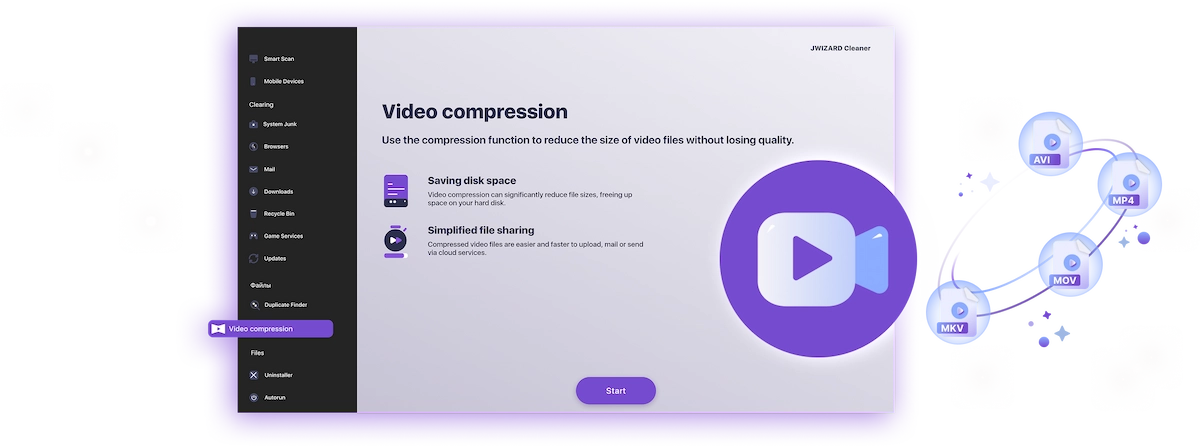
Open the "Video Compression" section from the main menu;
Select the folders to scan. The app will find all video files on your drives and display them;
Check the files you want to compress;
Choose a compression mode ("Lossless quality");
Click "Compress" and wait for it to finish. The app will then show you exactly how much space you've saved.;
Save the compressed video.
タスクに合ったモードを選択
| モード | 最適な用途 | 節約 | 説明 |
|---|---|---|---|
ロスレス品質(画質が最も重要な場合) |
| 最大50%節約した容量 | 元の品質、小さいファイル |
バランス(品質と容量の両方が必要な場合) |
| 最大65%節約した容量 | 高品質、縮小サイズ |
最大圧縮(ストレージが優先の場合) |
| 最大75%節約した容量 | コンパクトサイズ、しっかりした品質 |
なぜJWIZARD Cleanerを選ぶのか?
Windows 10と11に対応
現在のシステムバージョンと完全互換。
設定不要
アプリが最適なエンコード設定を自動選択。
オリジナルは安全
ファイルは自動削除されません。ソース素材の扱いはあなた次第。
バックグラウンドで動作
動画の圧縮中にアプリを最小化して作業を続けられます。

数千人のユーザーに信頼されています。
10万人以上がデバイスのパフォーマンス向上のためにJWIZARD Cleanerを選んでいます。あなたも仲間入りしましょう!
JWIZARD Cleanerユーザーの声
JWIZARD Cleanerのその他の機能:
システムジャンクのクリーンアップ
ブラウザデータのクリーンアップ
アンインストーラー
Androidデバイスのクリーンアップ
今すぐJWIZARD Cleanerをダウンロード
動画を1本も削除せずにディスク容量を確保!
よくある質問にお答えします:
Which compression mode should I choose if I don't know where to start?
"Balanced" is the way to go - it works well for most tasks. Quality stays high, and you free up 60-65% of the space. If the result looks good, stick with it.
What happens to the original file after compression?
How do I compress video without ruining the quality?
Can I compress video on Windows without installing any software?
Will the app change my video resolution without my permission?
記事

Launchpadからアプリがアンインストールできない場合はどうすればよいですか?
Launchpad からアプリをアンインストールする問題を解決する方法をご紹介します。この記事には、この問題のトラブルシューティングに役立つ手順とヒントが記載されています。

Macでアプリケーションをアンインストールするにはどうすればよいですか?
Macでアプリをアンインストールする3つの方法:比較して最適な方法を選びましょう。Macからアプリを完全にアンインストールしてディスクスペースを確保する方法をご紹介します。
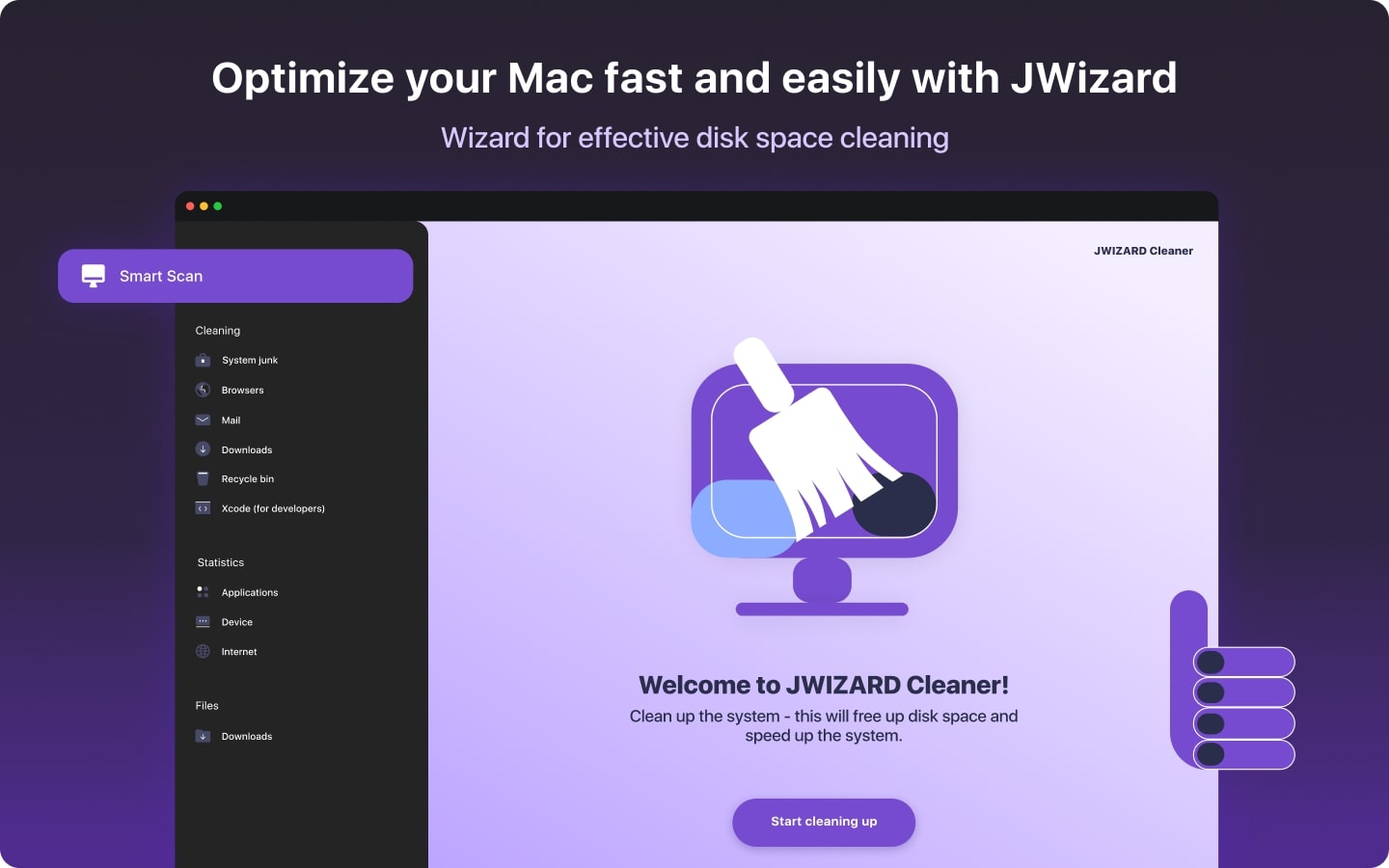
Macの空き容量を増やす:ジャンクファイルを削除してディスクをクリーンアップするには?
手動クリーンアップまたはプログラムを使用して、Macのディスク領域をクリアする方法について説明します。ヒントに従って容量を確保し、パフォーマンスを向上させましょう。