Стиснення відео для Windows: зменшіть розмір без втрати якості
You don’t have to delete videos to free up disk space.
Just compress them – your files stay right where they are, and the gigabytes disappear.
What Video Files Are Filling Up Your Windows Storage?
You probably don't notice your drive filling up until it's almost full. Video files are usually the culprit. Here's what takes up the most space:
- Gameplay recordings and streamsA single hour of 1080p footage runs 4–8 GB. A few gaming sessions, and your drive is packed.
- Відео зі смартфона4K clips can be 1–3 GB each. Move a few batches from your phone, and you're easily looking at dozens of gigabytes.
- Робочі записиWebinars, Zoom calls, screen recordings with slide decks. They pile up for months and are too important to delete.
- Personal video archivesVacations, holidays, years of family moments. Sitting untouched, but taking up serious real estate.
All of these files can be made 2–3x smaller – without deleting anything and without any noticeable loss in quality.
Gameplay recordings and streams
Відео зі смартфона
Робочі записи
Personal video archives

Why Compress Video on Windows?
A full drive on Windows isn't just an inconvenience. It slows down your entire system: apps take longer to open, updates fail to install, and there's no space left for temp files.
Most users don't realize that half their used storage can be recovered in minutes – just by running a video compressor.
And the compressed file is still fully usable: you can watch it, edit it, send it, or back it up to the cloud.
What video compression does for you:
- Frees up disk space – without deleting any files;
- Speeds up cloud uploads – Google Drive, OneDrive, Dropbox, and more;
- Makes sharing easier – gets around file size limits in messengers and email;
- Keeps Windows running smoothly – a full drive slows everything down.
Frees up disk space
Speeds up cloud uploads
Makes sharing easier
Keeps Windows running smoothly

How to Reduce Video Size on Windows: Your Options
Let's walk through the available methods – and why most of them are a hassle for the average user.
- Nothing to install;
- Works on any device;
- Simple interface.
- File size limit of up to 1 GB;
- Your video gets uploaded to a third-party server;
- Requires a stable internet connection;
- Free features are very limited
- Works locally on your machine;
- Flexible compression settings;
- No file size limits.
- Steep learning curve;
- Complicated interface;
- No built-in tool for finding your largest files.
- Full editing suite;
- Manual export settings.
- Compression is an afterthought, not the main feature;
- Require technical know-how;
- Heavy software, slow processing;
- Paid versions are expensive.

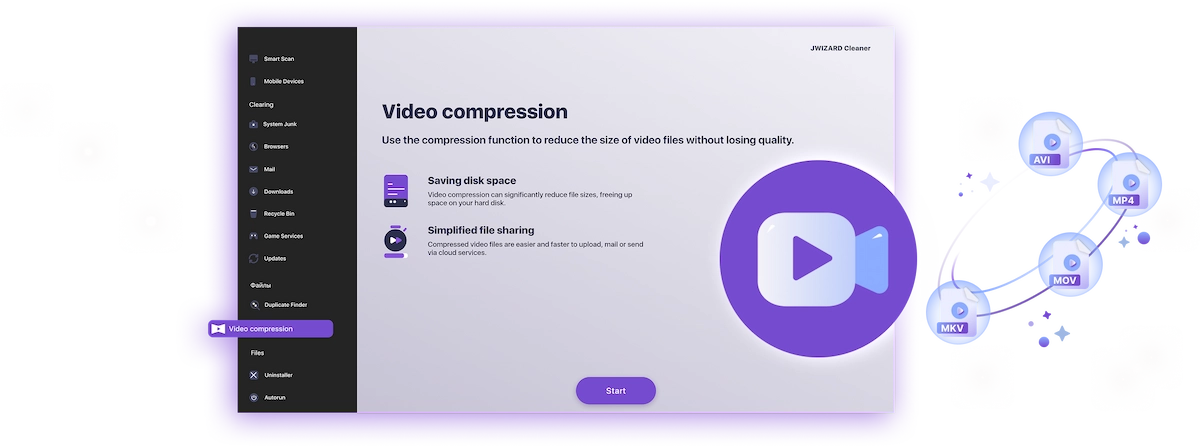
✅ JWIZARD Cleaner JWIZARD Cleaner handles video compression in just a couple of clicks: it automatically finds your largest files and processes everything locally – no technical knowledge needed, no file size limits.
How to Compress Video on Windows with JWIZARD Cleaner
Download and install JWIZARD Cleaner for Windows;
Open the "Video Compression" section from the main menu;
Select the folders to scan. The app will find all video files on your drives and display them;
Check the files you want to compress;
Choose a compression mode ("Lossless quality");
Click "Compress" and wait for it to finish. The app will then show you exactly how much space you've saved.;
Save the compressed video.
Оберіть режим під своє завдання
| Режим | Найкраще для | Економія | Опис |
|---|---|---|---|
Якість без втрат(коли якість найважливіша) |
| До 50%Заощаджене місце | Оригінальна якість, менший файл |
Збалансований(коли потрібні і якість, і місце) |
| До 65%Заощаджене місце | Висока якість, менший розмір |
Максимальне стиснення(коли місце - пріоритет) |
| До 75%Заощаджене місце | Компактний розмір, гарна якість |
Чому варто обрати JWIZARD Cleaner?
Працює на Windows 10 і 11
Повна сумісність з актуальними версіями системи.
Не потребує налаштування
Додаток автоматично обирає найкращі налаштування кодування.
Ваші оригінали в безпеці
Файли ніколи не видаляються автоматично. Ви самі вирішуєте, що робити з вихідним матеріалом.
Працює у фоновому режимі
Можна згорнути програму і працювати далі, поки відео стискається.

Довіра тисяч користувачів.
Понад 100 000 людей обрали JWIZARD Cleaner для покращення продуктивності своїх пристроїв. Приєднуйтесь!
Відгуки користувачів JWIZARD Cleaner
Інші функції JWIZARD Cleaner:
Очищення системного сміття
Очищення даних браузера
Деінсталятор
Очищення пристрою Android
Завантажте JWIZARD Cleaner сьогодні
Звільніть місце на диску, не видаляючи жодного відео!
Відповідаємо на ваші запитання:
Which compression mode should I choose if I don't know where to start?
"Balanced" is the way to go - it works well for most tasks. Quality stays high, and you free up 60-65% of the space. If the result looks good, stick with it.
What happens to the original file after compression?
How do I compress video without ruining the quality?
Can I compress video on Windows without installing any software?
Will the app change my video resolution without my permission?
Статті

Що робити, якщо програми не видаляються з Launchpad?
Дізнайтеся, як вирішити проблему з видаленням програми з Launchpad. Ця стаття містить покрокові інструкції та корисні поради щодо усунення цієї проблеми.

Як видалити програму на комп'ютері Mac?
3 способи видалення програм на комп'ютері Mac: порівняйте та виберіть той, який найкраще підходить саме вам. Дізнайтеся, як повністю видалити програму з комп'ютера Mac і звільнити місце на диску.
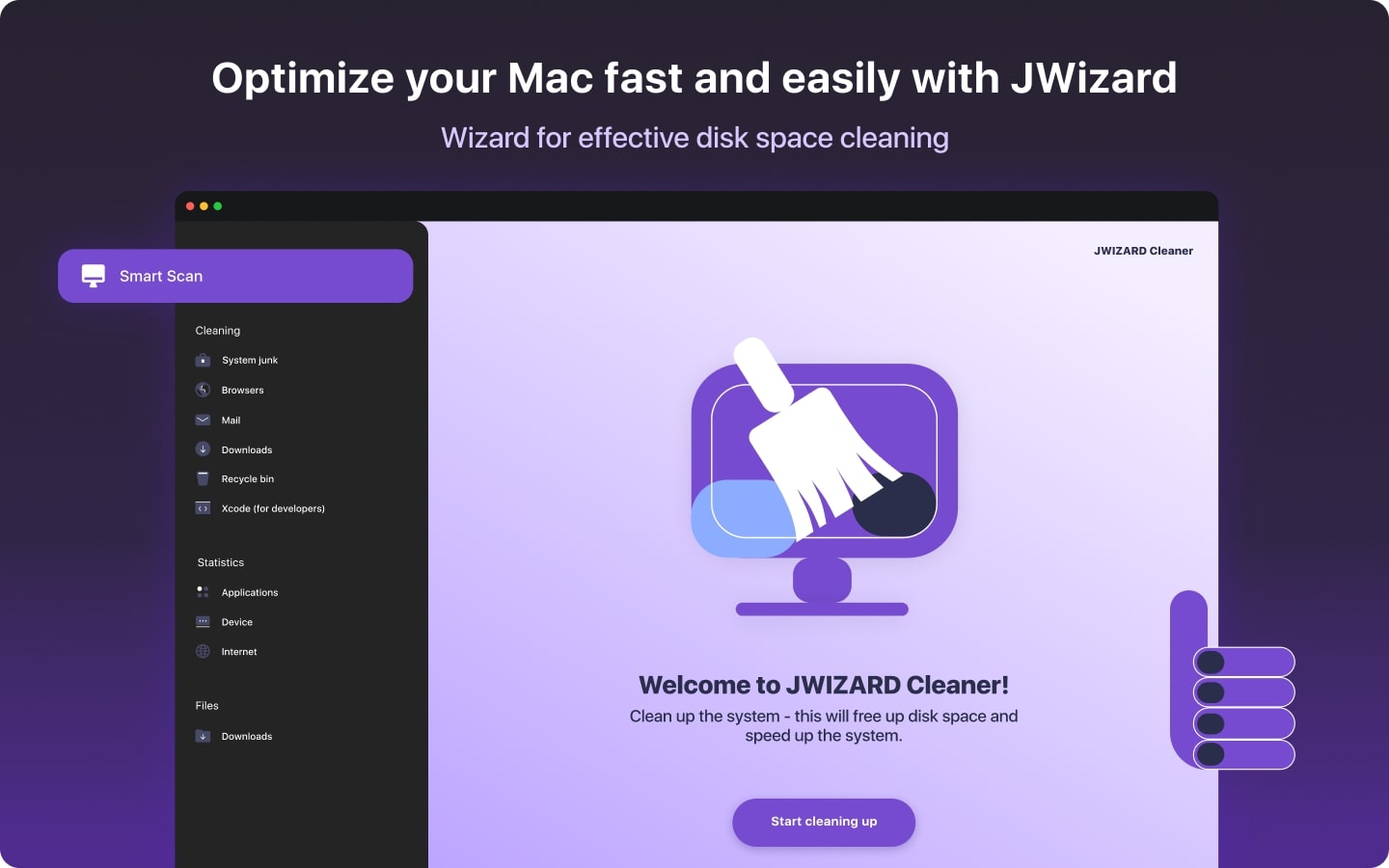
Звільнення місця на вашому Mac: Як видалити непотрібні файли та очистити диск?
Дізнайтеся, як очистити дисковий простір на комп'ютері Mac вручну або за допомогою програми. Дотримуйтесь порад, щоб звільнити місце та підвищити продуктивність.