Videocompressor voor Windows: Verklein videobestanden zonder kwaliteitsverlies
You don’t have to delete videos to free up disk space.
Just compress them – your files stay right where they are, and the gigabytes disappear.
What Video Files Are Filling Up Your Windows Storage?
You probably don't notice your drive filling up until it's almost full. Video files are usually the culprit. Here's what takes up the most space:
- Gameplay recordings and streamsA single hour of 1080p footage runs 4–8 GB. A few gaming sessions, and your drive is packed.
- Smartphonevideo's4K clips can be 1–3 GB each. Move a few batches from your phone, and you're easily looking at dozens of gigabytes.
- WerkopnamesWebinars, Zoom calls, screen recordings with slide decks. They pile up for months and are too important to delete.
- Personal video archivesVacations, holidays, years of family moments. Sitting untouched, but taking up serious real estate.
All of these files can be made 2–3x smaller – without deleting anything and without any noticeable loss in quality.
Gameplay recordings and streams
Smartphonevideo's
Werkopnames
Personal video archives

Why Compress Video on Windows?
A full drive on Windows isn't just an inconvenience. It slows down your entire system: apps take longer to open, updates fail to install, and there's no space left for temp files.
Most users don't realize that half their used storage can be recovered in minutes – just by running a video compressor.
And the compressed file is still fully usable: you can watch it, edit it, send it, or back it up to the cloud.
What video compression does for you:
- Frees up disk space – without deleting any files;
- Speeds up cloud uploads – Google Drive, OneDrive, Dropbox, and more;
- Makes sharing easier – gets around file size limits in messengers and email;
- Keeps Windows running smoothly – a full drive slows everything down.
Frees up disk space
Speeds up cloud uploads
Makes sharing easier
Keeps Windows running smoothly

How to Reduce Video Size on Windows: Your Options
Let's walk through the available methods – and why most of them are a hassle for the average user.
- Nothing to install;
- Works on any device;
- Simple interface.
- File size limit of up to 1 GB;
- Your video gets uploaded to a third-party server;
- Requires a stable internet connection;
- Free features are very limited
- Works locally on your machine;
- Flexible compression settings;
- No file size limits.
- Steep learning curve;
- Complicated interface;
- No built-in tool for finding your largest files.
- Full editing suite;
- Manual export settings.
- Compression is an afterthought, not the main feature;
- Require technical know-how;
- Heavy software, slow processing;
- Paid versions are expensive.

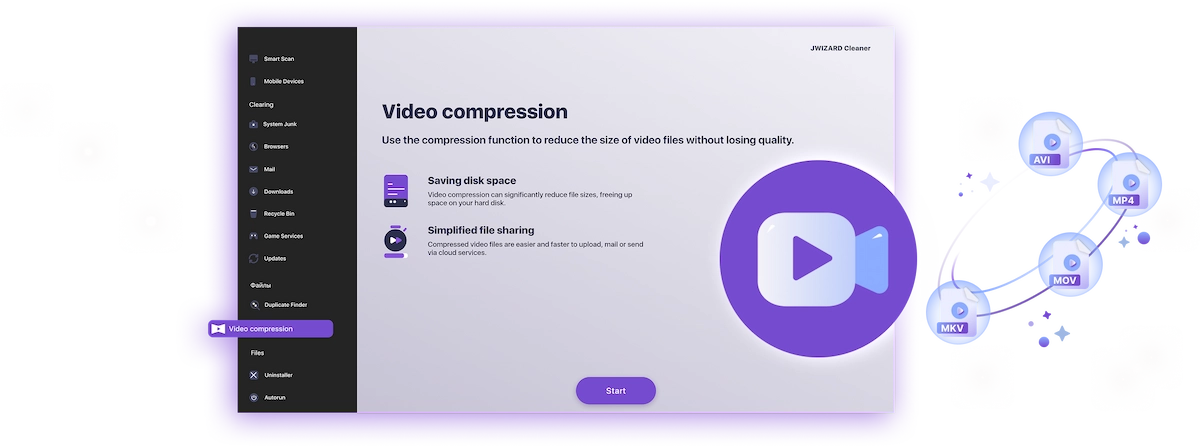
✅ JWIZARD Cleaner JWIZARD Cleaner handles video compression in just a couple of clicks: it automatically finds your largest files and processes everything locally – no technical knowledge needed, no file size limits.
How to Compress Video on Windows with JWIZARD Cleaner
Download and install JWIZARD Cleaner for Windows;
Open the "Video Compression" section from the main menu;
Select the folders to scan. The app will find all video files on your drives and display them;
Check the files you want to compress;
Choose a compression mode ("Lossless quality");
Click "Compress" and wait for it to finish. The app will then show you exactly how much space you've saved.;
Save the compressed video.
Kies de juiste modus voor je taak
| Modus | Het beste voor | Besparing | Beschrijving |
|---|---|---|---|
Verliesvrije kwaliteit(wanneer kwaliteit het belangrijkst is) |
| Tot 50%Ruimte bespaard | Originele kwaliteit, kleiner bestand |
Gebalanceerd(wanneer je kwaliteit én ruimte nodig hebt) |
| Tot 65%Ruimte bespaard | Hoge kwaliteit, kleiner formaat |
Maximale compressie(wanneer opslag prioriteit heeft) |
| Tot 75%Ruimte bespaard | Compact formaat, goede kwaliteit |
Waarom JWIZARD Cleaner kiezen?
Werkt op Windows 10 en 11
Volledige compatibiliteit met huidige systeemversies.
Geen configuratie nodig
De app kiest automatisch de beste coderingsinstellingen.
Je originelen zijn veilig
Bestanden worden nooit automatisch verwijderd. Jij beslist wat er met het bronmateriaal gebeurt.
Draait op de achtergrond
Je kunt de app minimaliseren en doorwerken terwijl de video wordt gecomprimeerd.

Vertrouwd door duizenden gebruikers.
Meer dan 100.000 mensen hebben JWIZARD Cleaner gekozen om de prestaties van hun apparaten te verbeteren. Sluit je bij hen aan!
JWIZARD Cleaner gebruikersfeedback
Andere JWIZARD Cleaner functies:
Systeemrommel opruimen
Browsergegevens opschonen
Verwijderprogramma
Android-apparaat opschonen
Download JWIZARD Cleaner vandaag nog
Maak schijfruimte vrij zonder ook maar één video te verwijderen!
Antwoord op uw vragen:
Which compression mode should I choose if I don't know where to start?
"Balanced" is the way to go - it works well for most tasks. Quality stays high, and you free up 60-65% of the space. If the result looks good, stick with it.
What happens to the original file after compression?
How do I compress video without ruining the quality?
Can I compress video on Windows without installing any software?
Will the app change my video resolution without my permission?
Artikelen

Wat moet ik doen als apps niet van Launchpad worden verwijderd?
Leer hoe je het probleem oplost met het verwijderen van een app van Launchpad. Dit artikel biedt stapsgewijze instructies en nuttige tips voor het oplossen van dit probleem.

Hoe verwijder ik een programma op mijn Mac?
3 manieren om programma's op je Mac te verwijderen: vergelijk en kies de manier die voor jou het beste werkt. Leer hoe je een programma volledig van je Mac verwijdert en schijfruimte vrijmaakt.
Ruimte vrijmaken op je Mac: Hoe verwijder ik ongewenste bestanden en ruim ik mijn schijf op?
Leer hoe je schijfruimte vrijmaakt op je Mac met behulp van handmatige opschoonmethoden of een programma. Volg de tips om ruimte vrij te maken en de prestaties te verbeteren.