Video Compressor for Windows: Reduce Video File Size Without Losing Quality
You don’t have to delete videos to free up disk space.
Just compress them – your files stay right where they are, and the gigabytes disappear.
What Video Files Are Filling Up Your Windows Storage?
You probably don't notice your drive filling up until it's almost full. Video files are usually the culprit. Here's what takes up the most space:
- Gameplay recordings and streamsA single hour of 1080p footage runs 4–8 GB. A few gaming sessions, and your drive is packed.
- فيديوهات الهاتف4K clips can be 1–3 GB each. Move a few batches from your phone, and you're easily looking at dozens of gigabytes.
- تسجيلات العملWebinars, Zoom calls, screen recordings with slide decks. They pile up for months and are too important to delete.
- Personal video archivesVacations, holidays, years of family moments. Sitting untouched, but taking up serious real estate.
All of these files can be made 2–3x smaller – without deleting anything and without any noticeable loss in quality.
Gameplay recordings and streams
فيديوهات الهاتف
تسجيلات العمل
Personal video archives

Why Compress Video on Windows?
A full drive on Windows isn't just an inconvenience. It slows down your entire system: apps take longer to open, updates fail to install, and there's no space left for temp files.
Most users don't realize that half their used storage can be recovered in minutes – just by running a video compressor.
And the compressed file is still fully usable: you can watch it, edit it, send it, or back it up to the cloud.
What video compression does for you:
- Frees up disk space – without deleting any files;
- Speeds up cloud uploads – Google Drive, OneDrive, Dropbox, and more;
- Makes sharing easier – gets around file size limits in messengers and email;
- Keeps Windows running smoothly – a full drive slows everything down.
Frees up disk space
Speeds up cloud uploads
Makes sharing easier
Keeps Windows running smoothly

How to Reduce Video Size on Windows: Your Options
Let's walk through the available methods – and why most of them are a hassle for the average user.
- Nothing to install;
- Works on any device;
- Simple interface.
- File size limit of up to 1 GB;
- Your video gets uploaded to a third-party server;
- Requires a stable internet connection;
- Free features are very limited
- Works locally on your machine;
- Flexible compression settings;
- No file size limits.
- Steep learning curve;
- Complicated interface;
- No built-in tool for finding your largest files.
- Full editing suite;
- Manual export settings.
- Compression is an afterthought, not the main feature;
- Require technical know-how;
- Heavy software, slow processing;
- Paid versions are expensive.

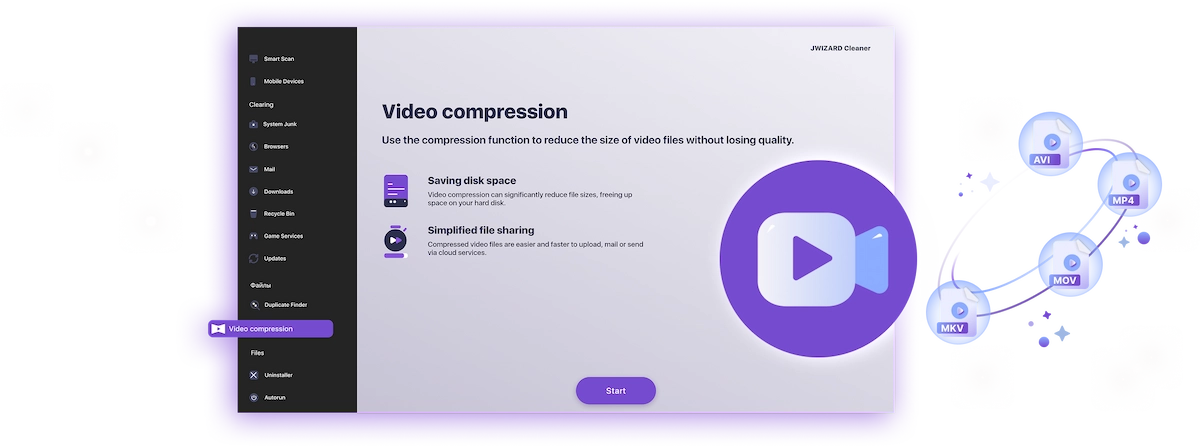
✅ JWIZARD Cleaner JWIZARD Cleaner handles video compression in just a couple of clicks: it automatically finds your largest files and processes everything locally – no technical knowledge needed, no file size limits.
How to Compress Video on Windows with JWIZARD Cleaner
Download and install JWIZARD Cleaner for Windows;
Open the "Video Compression" section from the main menu;
Select the folders to scan. The app will find all video files on your drives and display them;
Check the files you want to compress;
Choose a compression mode ("Lossless quality");
Click "Compress" and wait for it to finish. The app will then show you exactly how much space you've saved.;
Save the compressed video.
اختر الوضع المناسب لمهمتك
| الوضع | الأفضل لـ | التوفير | الوصف |
|---|---|---|---|
جودة بدون خسارة(عندما تكون الجودة أهم شيء) |
| حتى 50%المساحة الموفرة | جودة أصلية، ملف أصغر |
متوازن(عندما تحتاج الجودة والمساحة) |
| حتى 65%المساحة الموفرة | جودة عالية، حجم أصغر |
ضغط أقصى(عندما تكون المساحة هي الأولوية) |
| حتى 75%المساحة الموفرة | حجم مضغوط، جودة جيدة |
لماذا تختار JWIZARD Cleaner؟
يعمل على Windows 10 و 11
توافق كامل مع إصدارات النظام الحالية.
لا يحتاج إعداد
يختار التطبيق تلقائياً أفضل إعدادات التشفير.
ملفاتك الأصلية آمنة
لا يتم حذف الملفات تلقائياً. أنت تقرر ماذا تفعل بالمواد الأصلية.
يعمل في الخلفية
يمكنك تصغير التطبيق ومواصلة العمل أثناء ضغط الفيديو.

موثوق من آلاف المستخدمين.
أكثر من 100,000 شخص اختاروا JWIZARD Cleaner لتحسين أداء أجهزتهم. انضم إليهم!
آراء مستخدمي JWIZARD Cleaner
ميزات JWIZARD Cleaner الأخرى:
تنظيف مخلفات النظام
تنظيف بيانات المتصفح
برنامج إلغاء التثبيت
تنظيف جهاز Android
حمّل JWIZARD Cleaner اليوم
حرر مساحة القرص دون حذف أي فيديو!
نجيب على أسئلتكم:
Which compression mode should I choose if I don't know where to start?
"Balanced" is the way to go - it works well for most tasks. Quality stays high, and you free up 60-65% of the space. If the result looks good, stick with it.
What happens to the original file after compression?
How do I compress video without ruining the quality?
Can I compress video on Windows without installing any software?
Will the app change my video resolution without my permission?
المقالات

ماذا أفعل إذا لم يتم إلغاء تثبيت التطبيقات من Launchpad؟
تعرف على كيفية حل مشكلة إلغاء تثبيت تطبيق من Launchpad. توفر هذه المقالة إرشادات خطوة بخطوة ونصائح مفيدة لاستكشاف هذه المشكلة وإصلاحها

كيف يمكنني إلغاء تثبيت تطبيق على جهاز Mac الخاص بي؟
3 طرق لإلغاء تثبيت التطبيقات على جهاز Mac الخاص بك: قارن واختر الطريقة الأفضل لك. تعرف على كيفية إلغاء تثبيت تطبيق بالكامل من جهاز Mac الخاص بك وإخلاء مساحة على القرص.
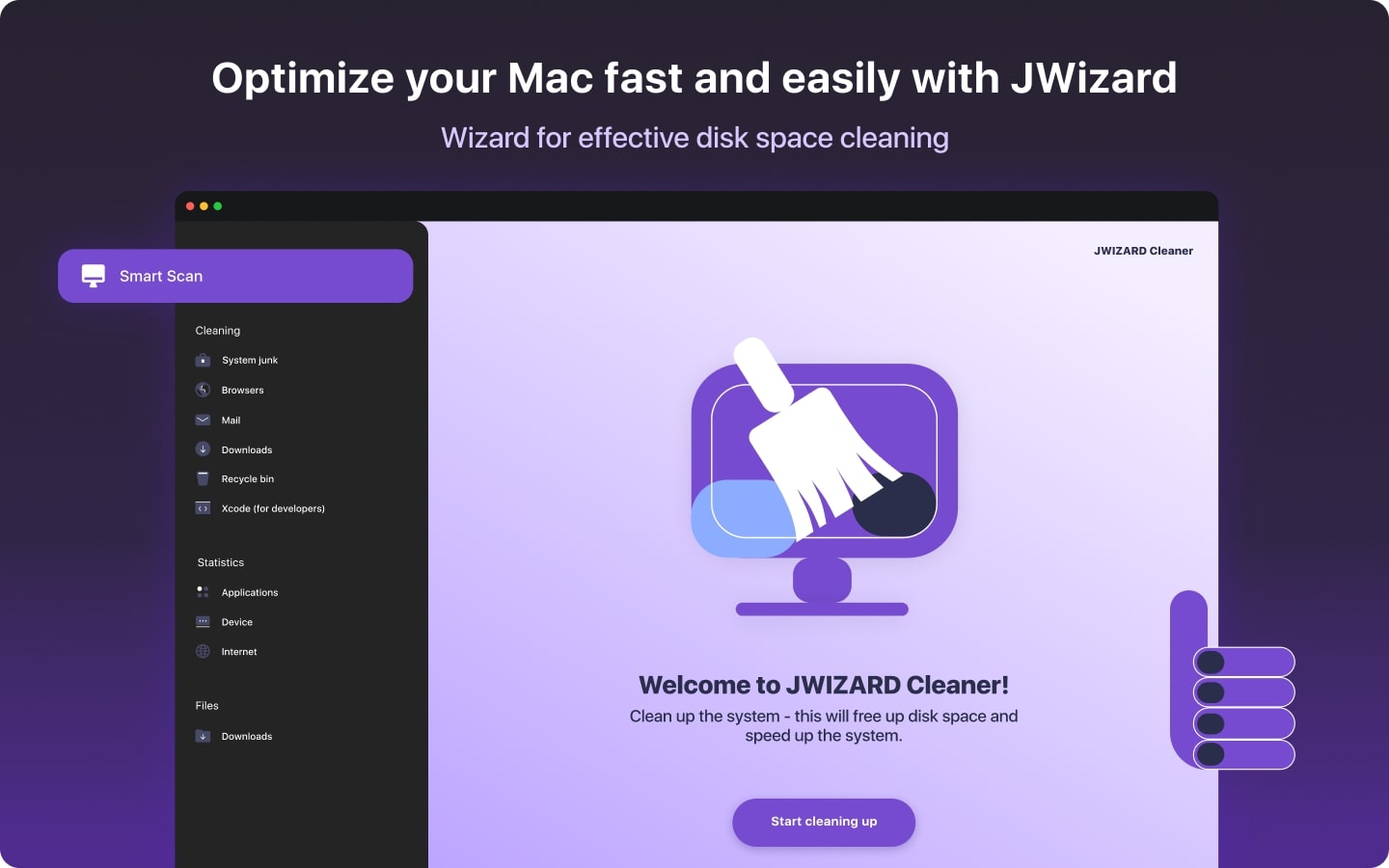
تفريغ مساحة على جهاز Mac الخاص بك: كيف يمكنني حذف الملفات غير المرغوب فيها وتنظيف القرص الخاص بي؟
تعرف على كيفية إخلاء مساحة القرص على جهاز Mac الخاص بك باستخدام طرق التنظيف اليدوي أو أحد البرامج. اتبع النصائح لتحرير مساحة وتحسين الأداء.