Compressor de Vídeo para Windows: Reduza o Tamanho dos Arquivos Sem Perder Qualidade
Não precisa apagar nenhum vídeo para liberar espaço no disco.
Basta comprimir – os arquivos ficam onde estão e os gigabytes somem.
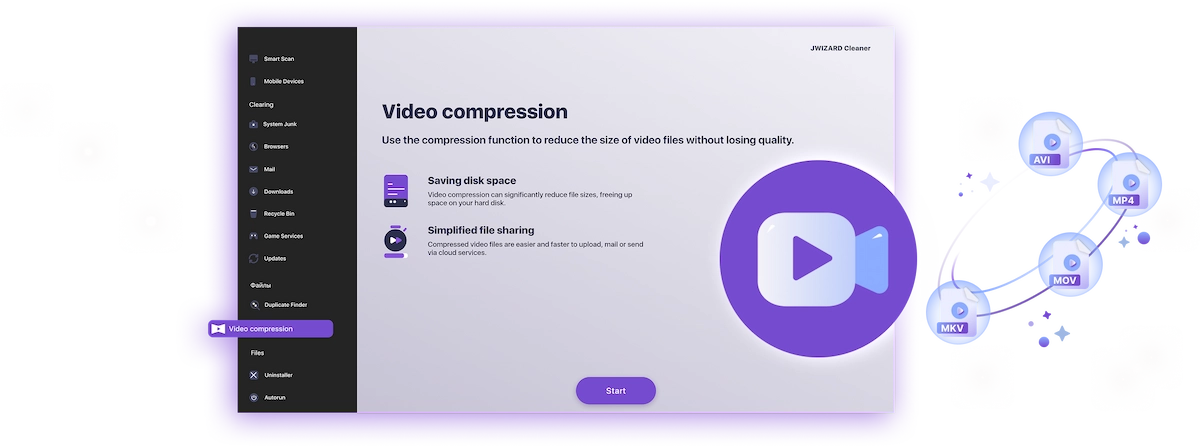
Quais arquivos de vídeo estão enchendo o seu armazenamento no Windows?
Geralmente você só percebe quando o disco já está quase cheio. E quase sempre os culpados são os vídeos. Veja o que mais ocupa espaço:
- Gravações de gameplay e streamsUma hora em 1080p pesa facilmente entre 4 e 8 GB. Umas poucas sessões de jogo e o disco já está no limite.
- Videos do celularClipes em 4K chegam a pesar de 1 a 3 GB cada. Algumas transferências do telefone e você já tem dezenas de gigabytes acumulados.
- Gravações de trabalhoWebinars, chamadas no Zoom, gravações de tela com apresentações. Vão se acumulando por meses e sempre parecem importantes demais para apagar.
- Arquivo pessoal de vídeosViagens, festas, anos de recordações em família. Intocados, mas ocupando um espaço enorme.
Todos esses arquivos podem ficar de 2 a 3 vezes menores – sem apagar nada e sem nenhuma perda visível de qualidade.
Gravações de gameplay e streams
Videos do celular
Gravações de trabalho
Arquivo pessoal de vídeos

Por que comprimir vídeo no Windows?
Disco cheio no Windows não é só um incômodo. O sistema inteiro fica mais lento: os aplicativos demoram mais para abrir, as atualizações não instalam e não sobra espaço para arquivos temporários.
A maioria dos usuários não sabe que metade do espaço ocupado pode ser recuperada em minutos – só de rodar um compressor de vídeo.
E o arquivo comprimido continua sendo plenamente utilizável: você pode assistir, editar, compartilhar ou salvar na nuvem.
O que a compressão de vídeo faz por você:
- Libera espaço no disco – sem apagar nenhum arquivo;
- Acelera uploads para a nuvem – Google Drive, OneDrive, Dropbox e outros;
- Facilita o compartilhamento – contorna os limites de tamanho em apps de mensagem e e-mail;
- Mantém o Windows rápido – disco cheio deixa tudo mais lento.
Libera espaço no disco
Acelera uploads para a nuvem
Facilita o compartilhamento
Mantém o Windows rápido

Como reduzir o tamanho de um vídeo no Windows: suas opções
Vamos ver os métodos disponíveis – e por que a maioria é complicada para o usuário comum.
- Nada para instalar;
- Funciona em qualquer dispositivo;
- Interface simples.
- Limite de tamanho de arquivo de até 1 GB;
- Seu vídeo é enviado para um servidor de terceiros;
- Exige conexão estável à internet;
- Funções gratuitas são muito limitadas.
- Processa tudo localmente no seu computador;
- Configurações flexíveis de compressão;
- Sem limites de tamanho de arquivo.
- Curva de aprendizado íngreme;
- Interface complicada;
- Sem ferramenta integrada para localizar os arquivos mais pesados.
- Suite de edição completa;
- Configurações manuais de exportação.
- A compressão não é a função principal;
- Requer conhecimentos técnicos;
- Software pesado, processamento lento;
- Versões pagas são caras.

✅ JWIZARD Cleaner resolve a compressão de vídeo em poucos cliques: encontra automaticamente os arquivos mais pesados e processa tudo localmente – sem conhecimento técnico e sem limites de tamanho.
Como comprimir vídeo no Windows com JWIZARD Cleaner – Passo a Passo
Baixe e instale o JWIZARD Cleaner para Windows;
Abra a seção "Compressão de Vídeo" no menu principal;
Selecione as pastas. O programa encontrará todos os arquivos de vídeo;
Marque os arquivos que você quer comprimir;
Escolha o modo de compressão ("Sem perda");
Clique em Comprimir e aguarde. O programa vai mostrar quanto espaco voce liberou.
Salve o vídeo comprimido.
Escolha o modo certo para sua tarefa
| Modo | Ideal para | Economia | Descrição |
|---|---|---|---|
Qualidade sem perda(quando a qualidade é prioridade) |
| Até 50%Espaço economizado | Qualidade original, arquivo menor |
Equilibrado(quando você precisa de qualidade e espaço) |
| Até 65%Espaço economizado | Alta qualidade, tamanho reduzido |
Compressão máxima(quando o espaço é prioridade) |
| Até 75%Espaço economizado | Tamanho compacto, boa qualidade |
Por que escolher o JWIZARD Cleaner?
Funciona no Windows 10 e 11
Compatibilidade total com as versões atuais do sistema.
Sem necessidade de configuração
O app escolhe automaticamente as melhores configurações de codificação.
Seus originais estão seguros
Os arquivos nunca são apagados automaticamente. Você decide o que fazer com o material original.
Roda em segundo plano
Você pode minimizar o app e continuar trabalhando enquanto o vídeo é comprimido.

Escolhido por milhares de usuários
Mais de 100.000 pessoas escolheram o JWIZARD Cleaner para melhorar o desempenho dos seus dispositivos. Faça parte desse grupo!
Opiniões dos usuários do JWIZARD Cleaner
Outras funções do JWIZARD Cleaner:
Limpeza de lixo do sistema
Limpeza de dados do navegador
Desinstalador
Limpeza de dispositivo Android
Baixe o JWIZARD Cleaner hoje
Libere espaço sem apagar nenhum vídeo!
Respondendo suas perguntas:
Qual modo de compressão escolher se não sei por onde começar?
"Equilibrado" é a melhor escolha - funciona para a maioria das tarefas. A qualidade permanece alta e você libera 60-65% do espaço.
O que acontece com o arquivo original após a compressão?
Como comprimir vídeo sem prejudicar a qualidade?
Posso comprimir vídeo no Windows sem instalar nenhum programa?
O app vai mudar a resolução do meu vídeo sem minha permissão?
Artigos

blog.articles.resolving-the-problem-of-uninstalling-apps.title
blog.articles.resolving-the-problem-of-uninstalling-apps.description

blog.articles.how-to-delete-apps-on-mac.title
blog.articles.how-to-delete-apps-on-mac.description
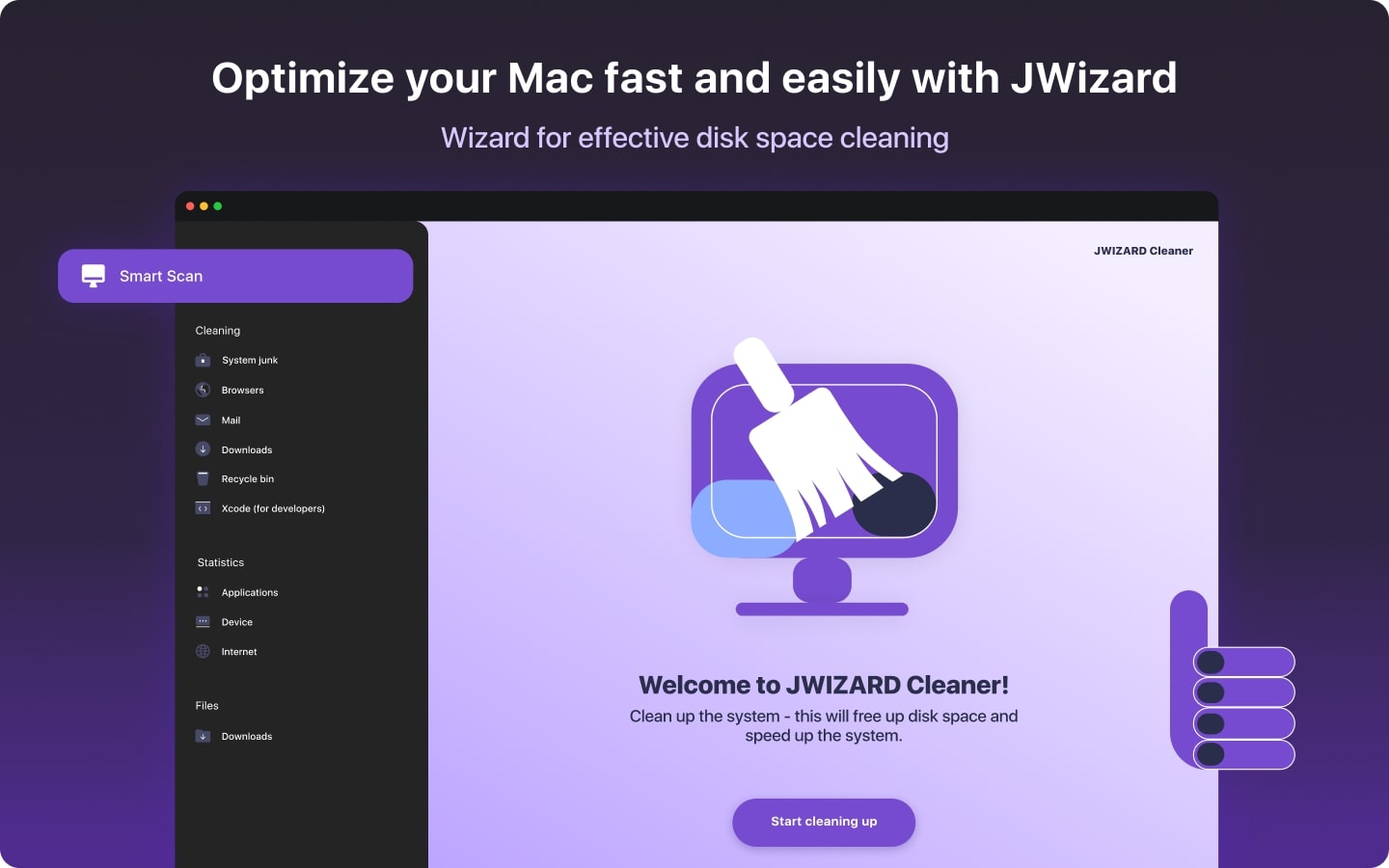
blog.articles.how-do-you-clean-your-mac.title
blog.articles.how-do-you-clean-your-mac.description