Video Compressor for Windows: Reduce Video File Size Without Losing Quality
You don’t have to delete videos to free up disk space.
Just compress them – your files stay right where they are, and the gigabytes disappear.
What Video Files Are Filling Up Your Windows Storage?
You probably don't notice your drive filling up until it's almost full. Video files are usually the culprit. Here's what takes up the most space:
- Gameplay recordings and streamsA single hour of 1080p footage runs 4–8 GB. A few gaming sessions, and your drive is packed.
- Videa z telefonu4K clips can be 1–3 GB each. Move a few batches from your phone, and you're easily looking at dozens of gigabytes.
- Pracovní záznamyWebinars, Zoom calls, screen recordings with slide decks. They pile up for months and are too important to delete.
- Personal video archivesVacations, holidays, years of family moments. Sitting untouched, but taking up serious real estate.
All of these files can be made 2–3x smaller – without deleting anything and without any noticeable loss in quality.
Gameplay recordings and streams
Videa z telefonu
Pracovní záznamy
Personal video archives

Why Compress Video on Windows?
A full drive on Windows isn't just an inconvenience. It slows down your entire system: apps take longer to open, updates fail to install, and there's no space left for temp files.
Most users don't realize that half their used storage can be recovered in minutes – just by running a video compressor.
And the compressed file is still fully usable: you can watch it, edit it, send it, or back it up to the cloud.
What video compression does for you:
- Frees up disk space – without deleting any files;
- Speeds up cloud uploads – Google Drive, OneDrive, Dropbox, and more;
- Makes sharing easier – gets around file size limits in messengers and email;
- Keeps Windows running smoothly – a full drive slows everything down.
Frees up disk space
Speeds up cloud uploads
Makes sharing easier
Keeps Windows running smoothly

How to Reduce Video Size on Windows: Your Options
Let's walk through the available methods – and why most of them are a hassle for the average user.
- Nothing to install;
- Works on any device;
- Simple interface.
- File size limit of up to 1 GB;
- Your video gets uploaded to a third-party server;
- Requires a stable internet connection;
- Free features are very limited
- Works locally on your machine;
- Flexible compression settings;
- No file size limits.
- Steep learning curve;
- Complicated interface;
- No built-in tool for finding your largest files.
- Full editing suite;
- Manual export settings.
- Compression is an afterthought, not the main feature;
- Require technical know-how;
- Heavy software, slow processing;
- Paid versions are expensive.

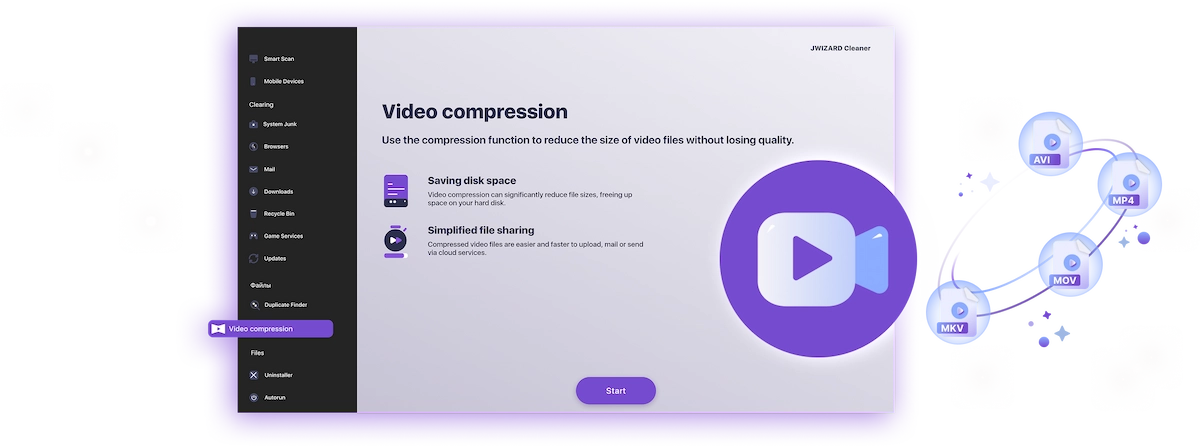
✅ JWIZARD Cleaner JWIZARD Cleaner handles video compression in just a couple of clicks: it automatically finds your largest files and processes everything locally – no technical knowledge needed, no file size limits.
How to Compress Video on Windows with JWIZARD Cleaner
Download and install JWIZARD Cleaner for Windows;
Open the "Video Compression" section from the main menu;
Select the folders to scan. The app will find all video files on your drives and display them;
Check the files you want to compress;
Choose a compression mode ("Lossless quality");
Click "Compress" and wait for it to finish. The app will then show you exactly how much space you've saved.;
Save the compressed video.
Vyberte správný režim pro váš úkol
| Režim | Nejlepší pro | Úspora | Popis |
|---|---|---|---|
Bezztrátová kvalita(když záleží na kvalitě) |
| Až 50%Ušetřené místo | Původní kvalita, menší soubor |
Vyvážený(když potřebujete kvalitu i místo) |
| Až 65%Ušetřené místo | Vysoká kvalita, menší velikost |
Maximální komprese(když je místo prioritou) |
| Až 75%Ušetřené místo | Kompaktní velikost, dobrá kvalita |
Proč zvolit JWIZARD Cleaner?
Funguje na Windows 10 a 11
Plná kompatibilita s aktuálními verzemi systému.
Bez nutnosti konfigurace
Aplikace automaticky vybere nejlepší nastavení kódování.
Vaše originály jsou v bezpečí
Soubory se nikdy nemažou automaticky. Vy rozhodujete, co s původním materiálem.
Běží na pozadí
Můžete aplikaci minimalizovat a pracovat dál, zatímco se video komprimuje.

Důvěřují mu tisíce uživatelů.
Více než 100 000 lidí si vybralo JWIZARD Cleaner pro zlepšení výkonu svých zařízení. Přidejte se k nim!
Hodnocení uživatelů JWIZARD Cleaner
Další funkce JWIZARD Cleaner:
Čištění systémového odpadu
Čištění dat prohlížeče
Odinstalační program
Čištění zařízení Android
Stáhněte si JWIZARD Cleaner ještě dnes
Uvolněte místo na disku bez mazání jediného videa!
Odpovídáme na vaše dotazy:
Which compression mode should I choose if I don't know where to start?
"Balanced" is the way to go - it works well for most tasks. Quality stays high, and you free up 60-65% of the space. If the result looks good, stick with it.
What happens to the original file after compression?
How do I compress video without ruining the quality?
Can I compress video on Windows without installing any software?
Will the app change my video resolution without my permission?
Články

Co mám dělat, když se aplikace z Launchpadu neodinstalují?
Přečtěte si, jak vyřešit problém s odinstalováním aplikace z Launchpadu. Tento článek obsahuje pokyny krok za krokem a užitečné tipy pro řešení tohoto problému.

Jak odinstalovat aplikaci v Macu?
3 způsoby odinstalace aplikací na Macu: porovnejte je a vyberte si ten, který vám vyhovuje nejlépe. Přečtěte si, jak z Macu úplně odinstalovat aplikaci a uvolnit místo na disku.
Uvolnění místa v Macu: Jak odstranit nepotřebné soubory a vyčistit disk?
Přečtěte si, jak vyčistit místo na disku Macu pomocí ručního čištění nebo programu. Postupujte podle tipů, abyste uvolnili místo a zvýšili výkon.