Every browser on Windows 11 stores browsing data in its own location, with its own session logic and its own quirks. While testing how popular browsers behave on Windows 11, JWizard engineers ran into an odd case: Firefox can wipe your browsing history yet leave the download history untouched, unless a separate setting is checked. Below, we walk through three scenarios – Edge, Chrome, Firefox – and point out exactly where manual cleanup falls short and where automation through JWizard Cleaner takes over.
Table of Contents
- Why Bother Clearing Browser Data on Windows 11
- Clearing Browsing Data in Edge
- How to Clear Cookies in Chrome on Windows 11
- Clearing Data in Firefox
- Comparing the Cleanup Methods
- JWizard Cleaner for Every Browser
- Frequently Asked Questions
Why Bother Clearing Browser Data on Windows 11
Browsing data means cache, cookies, visit history, and your download list. Over time, these pile up inside every browser profile and slow things down. On top of that, outdated cookies sometimes block you from logging in properly after you’ve changed a password.
Clearing browsing data tackles three problems at once: it frees up disk space, speeds up page loading, and erases traces of sites you’ve visited. Let’s look at how to do this in each browser on Windows 11 individually, since the interface and session-saving logic differ from one to the next.
What Actually Gets Cleared
- Browser cache – temporary page files that speed up repeat visits;
- Cookies and site data – logins, preferences, session identifiers;
- Browsing history – the list of pages you’ve opened and searched for;
- Download history – the record of downloaded files (the files themselves stay put).
Clearing Browsing Data in Edge
To wipe your browsing history in Microsoft Edge on Windows 11, open Settings → Privacy, search, and services → Choose what to clear. From there, pick the data types and the time range.
- Open Edge and click the three dots in the top-right corner.
- Go to Settings → Privacy, search, and services.
- Click Clear browsing data now → Choose what to clear.
- Check the items you need: browsing history, cookies, cached files.
- Set the range to “All time” and click Clear now.
Recent versions of Edge also include a separate toggle: automatically clear cookies when the browser closes. It sits in the same Privacy section, under “Clear browsing data on close.” If this gets switched on by accident, you’ll find yourself logged out of every site each time you relaunch the browser – even when that’s the last thing you wanted.
If clearing cookies in Edge keeps logging you out of sites you actually want to stay signed into, check this exact setting first – it often gets enabled by default after a browser update.
⚠️ This method won’t restore saved passwords if they were deleted along with cookies under “Passwords and form data” – you need to uncheck those items manually before running the cleanup.
How to Clear Cookies in Chrome on Windows 11
The fastest way to clear Chrome cookies and cache is a keyboard shortcut. Press Ctrl+Shift+Delete while Chrome is open, and the data-clearing panel pops up instantly.
- Open Chrome and press Ctrl+Shift+Delete.
- From the dropdown, select “All time.”
- Check the categories you need: history, cookies, cached images.
- Click Clear data.
If you only want to clear the cache without touching passwords or browsing history, simply uncheck the other boxes before confirming. You can also handle this separately through our guide on clearing the Chrome cache, which covers the process without losing any saved logins.
⚠️ One limitation worth knowing: once you clear data for “all time,” Chrome doesn’t sort it by site – so you can’t selectively keep cookies for specific services through this menu alone. For that, you’ll need per-site management in settings.
Clearing Data in Firefox
Firefox keeps its privacy settings separate from history and cache, which means clearing everything takes one extra step compared to Chrome or Edge.
- Open the Firefox menu (three horizontal lines) → Settings.
- Go to Privacy & Security.
- Under Cookies and Site Data, click Clear Data.
- Choose what to remove: cookies and site data, cached web content.
- Confirm the cleanup.
Firefox has a quirk worth flagging: the browser can erase your browsing history while leaving download history completely intact, unless the matching option is checked separately. As a result, users sometimes assume the cleanup failed – in reality, the download list is simply stored on its own and needs manual deletion from the history section.
⚠️ This method doesn’t automatically clear the profile cache during regular use – it can grow to several gigabytes and builds right back up after each cleanup unless you set it to clear automatically on exit.
So how do you speed this up when you’re juggling more than one browser on the same machine?
Comparing the Cleanup Methods
Out of all these options, only one actually finishes the job across every installed browser without making you switch between separate settings menus each time.
JWizard Cleaner for Every Browser
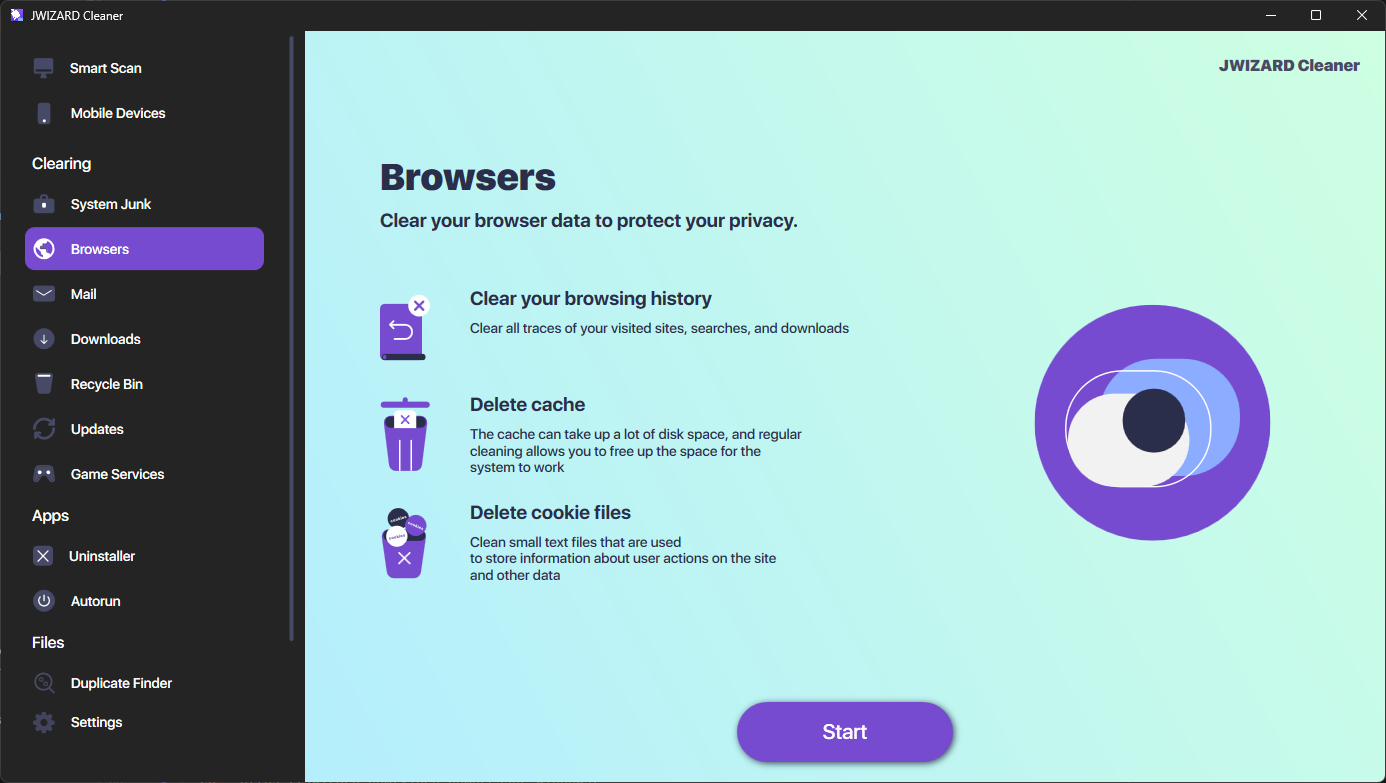
If your machine has several browsers installed – Chrome, Edge, Firefox, Opera, or Yandex – hunting down the browsing-data section in each one separately gets tedious fast. JWizard Cleaner detects data from every installed browser and lets you clear all of it from one interface.
- Browsing history – wiped across all browsers in one go;
- Browser cache – frees up space without hunting through menus;
- Download list – cleared separately from browsing history;
- Search history – removed together with the rest of your browsing data.
Meanwhile, saved passwords and active sessions stay untouched – the tool works only with browsing data, never with login credentials.
Regularly clearing browsing data saves disk space and cuts the risk of old sessions leaking on shared computers. For a one-off cleanup, the manual settings in each browser work fine – it’s a two-minute job. That said, if you’re running several browsers and cleaning them often, automating the process makes far more sense than repeating the same steps across different interfaces.
🔗 Read also
Frequently Asked Questions
Does clearing browsing data delete my passwords too?
No, not unless you separately check “Passwords and form data.” History, cookies, and cache are removed independently of your saved logins.
Why am I still logged out after clearing cookies in Edge?
The likely culprit is the “Clear browsing data on close” setting under Privacy. Turn it off so your sessions persist between browser launches.
Can I clear every browser at once with a single command?
Not within the browsers themselves – each one requires its own separate steps. JWizard Cleaner solves this through one interface that covers Chrome, Edge, Firefox, Opera, and Yandex simultaneously.
Why doesn’t Firefox delete download history along with browsing history?
They’re separate data categories with their own settings. To remove both, check the corresponding boxes manually in the data-clearing section.