Clearing your browser often feels like a gamble: you hit the button, then wonder whether your saved passwords and autofill survived. While auditing cache-clearing settings across Windows browsers, JWizard’s developers spotted a pattern: nearly every built-in tool bundles cache, history, and passwords into a single switch. As a result, people either avoid cleaning their browser altogether or accidentally wipe their login credentials. Below, we break down three scenarios – Chrome, Edge, and Firefox – and show exactly where each method can trip you up.
Table of Contents
- Where Your Browser’s Storage Actually Goes
- How to Clear Chrome Cache Without Losing Passwords
- Clearing Data in Microsoft Edge
- What Makes Firefox Cleanup Different
- Comparing Browser Cleanup Methods
- JWizard Cleaner for Every Browser at Once
- Frequently Asked Questions

Where Your Browser’s Storage Actually Goes
Browsers cache data to speed up page loading: images, scripts, and site styles get saved locally on disk, so a page opens faster on your next visit and puts less strain on your connection. Because of this, cache grows quietly in the background, especially if you browse heavily.
Chrome’s cache has no hard size limit by default. You can cap it using the –disk-cache-size flag in the Chrome shortcut properties, though setting it too high can actually slow down the browser itself, not just eat disk space.
Beyond cache, several other things eat up storage:
- Browsing history – records of every page you’ve visited;
- Download list – metadata about downloaded files;
- Cookies and site data – including login sessions across different sites;
- Search history – saved queries from the address bar.
How to Clear Chrome Cache Without Losing Passwords
To clear Chrome’s browsing data while keeping your Chrome passwords intact, you need to manually select only the categories you actually want removed – and leave saved logins and passwords unchecked.
- Open the address bar and type chrome://settings/clearBrowserData.
- From the time range dropdown, choose “All time.”
- Check “Browsing history,” “Cookies and other site data,” and “Cached images and files.”
- Make sure “Passwords and other sign-in data” stays unchecked.
- Click “Clear data.”
Note that checking “Cookies” will log you out of active sessions – you’ll need to sign back into email or social media. That said, your passwords remain safely stored in Chrome’s password manager.
⚠️ Limitation: this manual method only works for Chrome. If Edge, Firefox, or Yandex are also installed on your PC, you’ll need to clear their cache and history separately, repeating the entire process for each one.
Clearing Data in Microsoft Edge
Microsoft Edge on Windows 11 follows similar logic to Chrome, though the menu labels differ. That’s precisely why you should double-check the boxes tied to passwords before hitting clear.
- Go to Settings → Privacy, search, and services.
- Click “Choose what to clear” under Clear browsing data.
- Uncheck the “Passwords” box.
- Leave cache, history, and cookies checked as needed.
- Confirm the clear-data action.
⚠️ Edge’s cleanup doesn’t sync across browsers: clearing data here won’t touch Chrome or Firefox on the same machine, even if you’re signed into the same Microsoft account everywhere.
What Makes Firefox Cleanup Different
Firefox is noticeably more memory-hungry than its rivals: with five tabs open, it uses around 450 MB of RAM as of 2026. That figure doesn’t directly affect disk cache size, but it does explain why the browser can feel sluggish once you’ve got a lot of tabs open.
Clearing Firefox’s cache through the built-in privacy settings doesn’t always free up disk space right away. The reason: files can stay locked if the browser process hasn’t fully shut down.
Limitation: to actually reclaim disk space after clearing Firefox’s cache, first confirm every Firefox process is closed in Task Manager, then run Windows’ built-in Disk Cleanup as an administrator.
All three methods work, but each demands repeating the same steps browser by browser and staying careful about which boxes you check. So, is there a faster way?
Comparing Browser Cleanup Methods
Out of every option here, only one handles Windows browser cleanup without risking your passwords and without forcing you to repeat identical steps in every browser.
JWizard Cleaner for Every Browser at Once
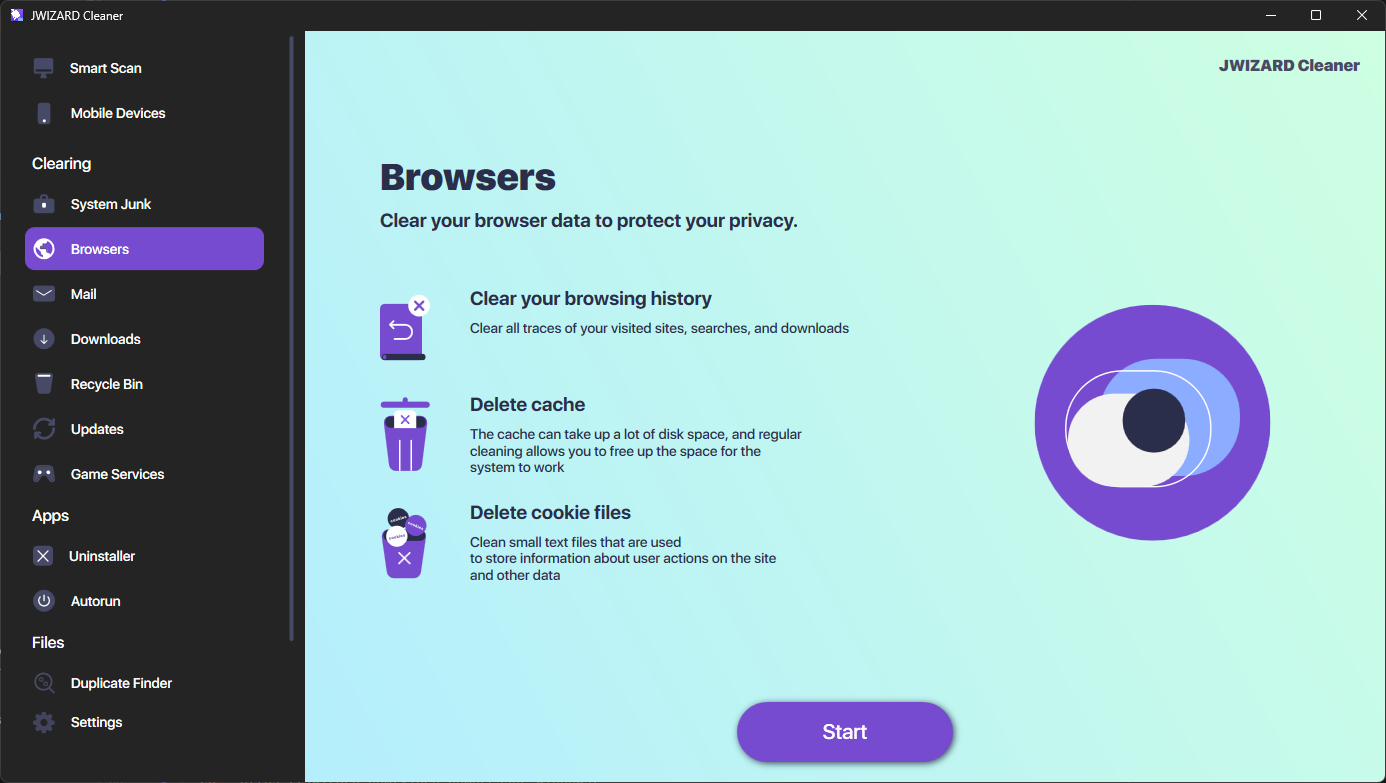
When you’ve got several browsers installed, cleaning each one by hand turns into repetitive busywork. JWizard Cleaner scans every installed browser and lets you choose exactly what to remove, without touching saved passwords or cookies.
- Browsing history – removed fully or selectively;
- Browser cache – cleared across all browsers at once or one at a time;
- Download list – wipes metadata about downloaded files;
- Search history – cleared independently from passwords and autofill data.
The app lets you clean Chrome, Edge, Firefox, Opera, or Yandex individually – so if you only need to free up space in one browser, the rest stay untouched. Over 50,000 users already rely on JWizard Cleaner for regular system cleanup on Windows and other platforms.
Regular browser cleanup keeps gigabytes of cache from piling up and reduces the risk of accidentally exposing your browsing history if you hand the computer to someone else. That said, a one-off cleanup before selling a laptop makes sense to do manually through each browser’s settings. However, if you’re juggling multiple browsers and need to clean them often, it’s far more practical to rely on one tool that handles everything in a single pass. For more on managing browser data in newer Windows versions, check out our guide on browser data.
Frequently Asked Questions
Can I clear Chrome’s cache without losing my passwords?
Yes – as long as you leave “Passwords and other sign-in data” unchecked in the clear browsing data settings. Cache, history, and cookies are removed separately from passwords, which live in their own settings section.
Why didn’t clearing the cache free up any disk space?
Often the real culprit isn’t cache at all, but browsing history, downloads, or search history – these can sometimes take up even more room. In Firefox, you also need to close every browser process before running Disk Cleanup.
What’s the difference between clearing cookies and clearing passwords?
Cookies store your login sessions on websites, so deleting them logs you out of your accounts – but your passwords stay saved in the browser regardless. Passwords are a separate data category entirely, and they’re not touched during a standard cache and history cleanup.
How can I clean all my browsers on one PC at once?
Manually, you’d need to go through each browser’s settings one at a time. JWizard Cleaner, on the other hand, scans every installed browser and lets you selectively clear history, cache, and downloads without any risk to your passwords.