Windows browsers each keep their own history, cache, cookies, and download list. As a result, clearing one browser never touches the others. While digging into browser cache behavior, JWizard engineers turned up a detail most people never notice: Edge keeps session data and page-preload files well past its official limit, which lets the cache folder balloon to 95 GB even though the policy cap is set at 320 MB. Below, we walk through four approaches – manual cleanup in Chrome, Edge, Firefox, and Opera, plus an automated route through JWizard Cleaner.
Table of Contents
- Why Browser History Sticks Around After You “Clear” It
- How to Delete History in Chrome on Windows
- How to Clear Data in Microsoft Edge
- How to Delete History in Firefox
- How to Clear History in Opera
- JWizard Cleaner: Wipe All Your Browsers in One Go
- Frequently Asked Questions

Why Browser History Sticks Around After You “Clear” It
Even after a standard history wipe, traces of your activity remain in the cache and network logs. Chrome, for instance, stores cached files completely separately from your browsing history. That’s precisely why address bar suggestions keep popping up even after you’ve supposedly deleted everything.
A genuinely thorough cleanup needs three steps: erase browsing history, clear the browser cache, and remove cookies. Skip any one of them, and leftover data stays parked on your disk.
⚠️ Every browser handles privacy settings its own way – there’s no universal menu that covers them all. That’s why we’ve broken the instructions down browser by browser below.
How to Delete History in Chrome on Windows
- Open Chrome and click ⋮ (three dots) in the top-right corner.
- Go to Settings → Privacy and security.
- Click Delete browsing data.
- Choose a time range – for example, All time.
- Check: Browsing history, Cookies and other site data, Cached images and files.
- Click Delete data.
If you’d rather have Chrome clear its cache automatically every time it closes, go to Settings → Privacy and security → Cookies and other site data → enable Clear cookies and site data when you close all windows.
⚠️ Deleting history alone doesn’t touch cached files or network logs. So, if autocomplete suggestions still show up after clearing history, go back into the same menu and clear the cache separately.
How to Clear Data in Microsoft Edge
- Open Edge and click … (three dots) in the top-right corner.
- Go to Settings → Privacy, search, and services.
- Under Clear browsing data, click Choose what to clear.
- Pick a time range and check the categories you need: browsing history, cache, cookies.
- Click Clear now.
According to Edge’s DiskCacheSize policy, the cache should be capped at 320 MB. In practice, though, the cache folder can grow to 95 GB, largely thanks to session data and page-preload files piling up unchecked. That’s exactly why clearing the Edge cache regularly matters just as much as wiping your search history.
The catch: manual cleanup in Edge only affects Edge. Chrome, Firefox, and Opera data stays completely untouched.
How to Delete History in Firefox
- Open Firefox and click ☰ (menu) in the top-right corner.
- Select History → Clear Recent History.
- From the dropdown, choose Everything.
- Check the data categories you want cleared: browsing history, cookies, cache, download history.
- Click Clear Now.
Want Firefox to handle this automatically on exit? Go to Settings → Privacy & Security → enable Delete cookies and site data when Firefox is closed, then select every category you need.
⚠️ If data keeps reappearing, double-check that the clear on exit option is actually turned on and that every category is ticked. Otherwise, Firefox will quietly carry your history over between sessions.
How to Clear History in Opera
- Open Opera and click the O logo in the top-left corner.
- Go to Settings → Privacy & security.
- Click Clear browsing data.
- Pick your time range and data types, then click Clear data.
If Opera’s history keeps coming back after you clear it, check whether Clear browsing data on exit is switched on in settings. When that option is active, Opera wipes its own history on closing – which can sometimes clash with a manual cleanup you just did.
⚠️ Clearing each browser manually, one by one, adds up to roughly 5–10 minutes total. Worse, it’s easy to miss cookies or the download list entirely if you don’t explicitly tick every category.
So, how do you clear search history across every browser on Windows in one pass – without opening each app individually?
JWizard Cleaner: Wipe All Your Browsers in One Go
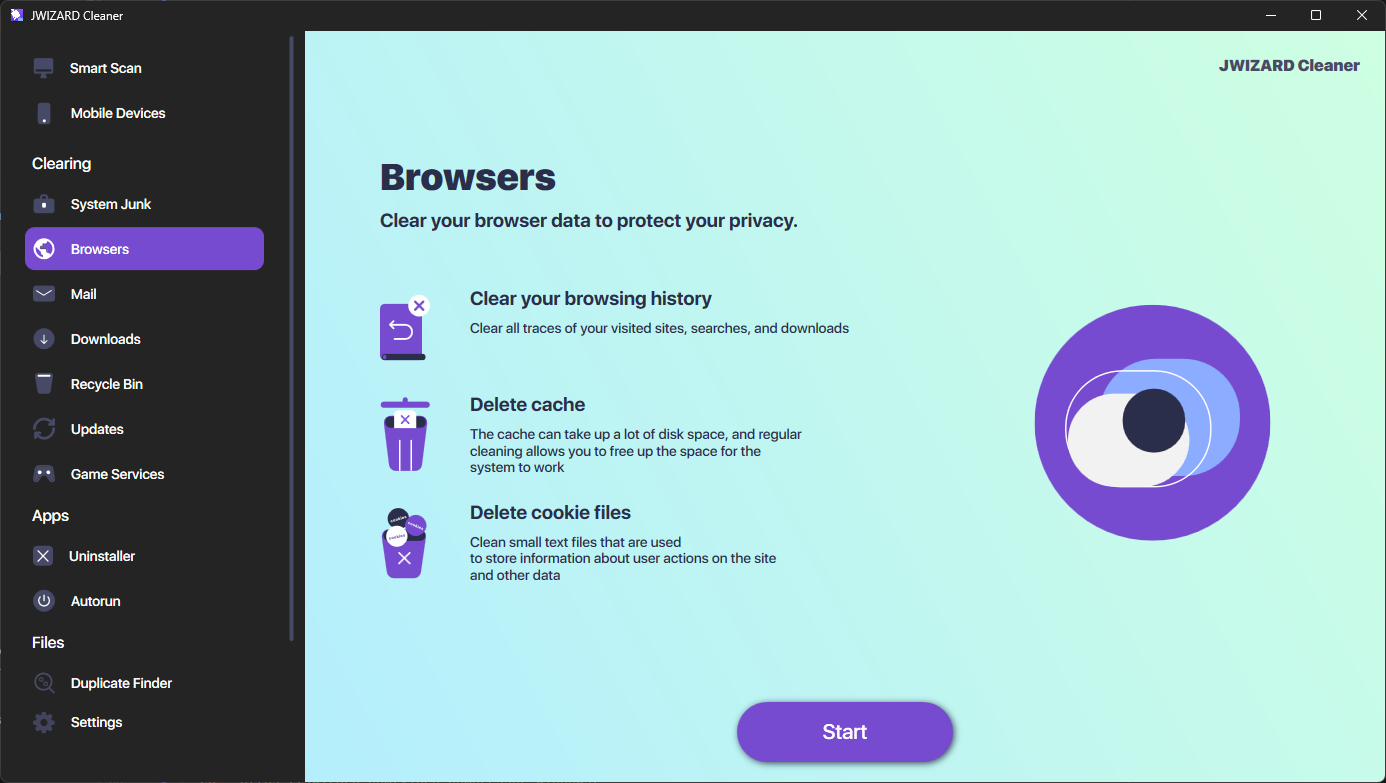
If you’d rather clear browser history on Windows across every installed app at once, JWizard Cleaner handles Chrome, Edge, Firefox, Opera, and Yandex Browser from a single interface.
- Browsing history – cleared across every browser simultaneously
- Browser cache – full cache cleanup for Chrome, Edge, Firefox, and Opera
- Browser cookies – removed across all profiles
- Search query history – cleared together with autocomplete data
- Download list – deleted without touching the actual downloaded files
- System junk and Recycle Bin – extra categories included as part of a combined cleanup
A properly executed browser data cleanup protects your browsing privacy and frees up disk space – which matters most once Edge has quietly stockpiled tens of gigabytes of cache. A one-off manual clean does solve the immediate problem, but browsers keep accumulating data regardless. If you’re managing multiple devices or browsers, it’s worth choosing a Windows cleanup app that skips the need to dig through each app’s settings manually.
Frequently Asked Questions
Why do address bar suggestions in Chrome stick around after I clear my history?
Chrome stores cached files and network logs entirely separately from your browsing history. Clearing history doesn’t touch that data at all. For a complete cleanup, you’ll also need to clear the cache under **Privacy and security**.
Do I really need to open every browser separately to delete history?
For manual cleanup, yes. Chrome, Edge, Firefox, and Opera each store data independently, and Windows has no single system-wide menu covering all of them. JWizard Cleaner handles this in one run instead.
What’s the difference between deleting history and clearing the browser cache?
History is simply a log of pages you’ve visited. Cache, on the other hand, is made up of saved site files – images, scripts, stylesheets. Deleting history won’t free up the space your cache is taking up. To actually reclaim disk space, you need to clear both.
Can I set up automatic history cleanup when I close my browser?
Yes – Chrome, Firefox, and Edge all have a built-in auto-clear-on-exit option. In each case, it’s tucked inside the privacy settings and needs to be turned on manually. JWizard Cleaner, meanwhile, lets you schedule cleanups without opening each browser’s settings at all.