Your iPhone’s camera roll fills up with near-identical shots faster than you’d expect. Burst mode, repeated iCloud syncs, and screenshot retakes all quietly stack up copies of the same moment. JWizard engineers dug into how the Duplicates album works in iOS 18 and found a specific gap: the system only catches exact file matches. Visually similar shots – say, three burst photos of the same scene taken a second apart – slip right through. Below, we break down Apple’s built-in tools, manual cleanup through iCloud, and the automation that fills the gap system search leaves open.
Table of Contents
- Why Duplicate Photos Keep Piling Up on iPhone
- The Built-In Duplicates Album in iOS 18
- How to Stop Duplicates From Piling Up via iCloud
- Manually Removing Similar Photos
- JWizard Cleaner for Finding Similar Photos
- Frequently Asked Questions
Why Duplicate Photos Keep Piling Up on iPhone
The main culprit is burst mode paired with automatic iCloud syncing, both of which generate multiple copies of the same shot without you doing anything. Every Live Photo, repeated screenshot, and messaging-app import adds more near-identical files to the mix. As a result, your All Photos album grows far faster than your actual useful photo count.
A few typical sources of duplicates show up again and again:
- Burst shooting – holding the shutter button saves anywhere from 3 to 10 nearly identical frames.
- Repeat imports – photos from your computer or a messaging app get copied into the gallery even though they’re already there.
- Multi-device sync – iCloud Photos can duplicate images when moving between an iPhone and an iPad.
- Screenshot retakes – several screenshots taken back-to-back while trying to catch the right moment.
The Built-In Duplicates Album in iOS 18
In the Photos app on an iPhone running iOS 18, duplicate images get collected into a dedicated Duplicates album, and you can merge them with a single tap to free up space. You’ll find it under the Utilities section, and it updates automatically whenever new matches appear.
However, the system only looks for identical files, not visually similar ones. That means three different frames of the same scene, shot a second apart, won’t get merged – technically, they’re separate files, even though they look nearly the same to the eye.
⚠️ A key limitation: iOS 18’s built-in search finds exact copies but can’t recognize similar-looking photos. That requires a different approach entirely – perceptual hashing, which compares visual content instead of raw file bytes.
How to Stop Duplicates From Piling Up via iCloud
To keep duplicates from reappearing, turn off Optimize iPhone Storage under Settings → Photos. This feature downloads smaller versions of images to your device and can sometimes create parallel copies of the same shot during resync.
- Open Settings → Photos.
- Select Download and Keep Originals instead of Optimize iPhone Storage.
- Let iCloud finish syncing – depending on your library size, this can take a while.
Shared iCloud albums on an iPhone running iOS 18 support up to 5,000 photos and videos, but they can’t automatically detect duplicates within themselves – you’ll need to compare opened images manually instead.
⚠️ Turning off storage optimization gives you back control over syncing, but it won’t delete duplicates that already exist. That cleanup still requires a separate step.
Manually Removing Similar Photos
Once you’ve cut off the source of new duplicates, you’re still left with the ones already sitting in your library. Manual cleanup works fine if you’re dealing with dozens of photos – not thousands.
- Open the All Photos album and sort by date, since similar shots usually sit next to each other.
- Compare each burst of shots visually and pick the best one.
- Tap the ones you don’t want, mark them with a checkmark, and delete them via the trash icon.
- Check the Recently Deleted album afterward – photos stay there for 30 days before they’re gone for good.
After deleting, some of that freed-up space might not appear right away. The reason is cloud syncing: if Storage Optimization is still active, or copies remain in other albums and apps, iCloud updates everything gradually rather than instantly.
⚠️ Manual review works, but it’s slow going: scrolling through a library of several thousand photos and eyeballing which ones look alike is a job that takes hours, not minutes.
So, is there a faster way to get through it?
JWizard Cleaner for Finding Similar Photos
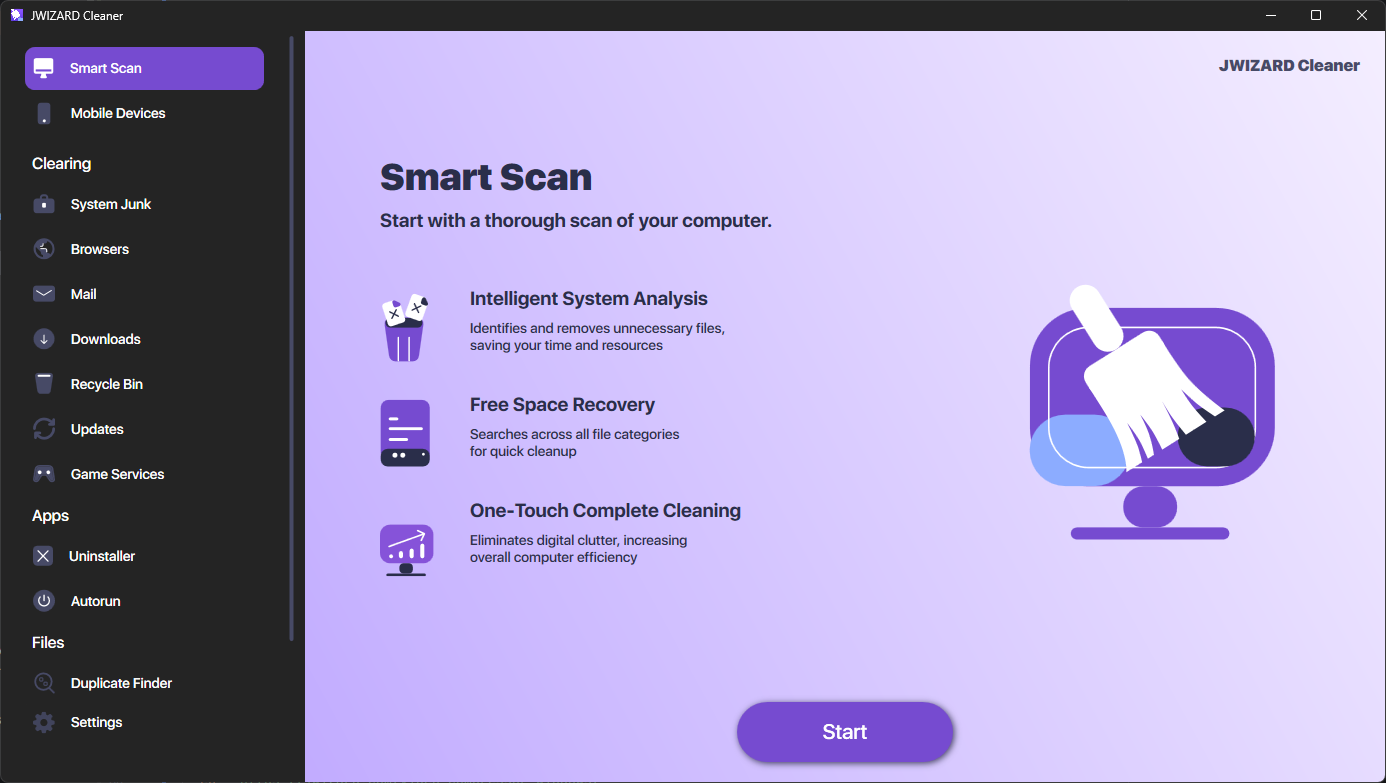
The goal isn’t just catching exact copies – it’s spotting visually similar shots from burst sequences too. JWizard Cleaner scans your gallery and calculates a perceptual hash for each image, comparing visual traits between photos rather than their raw file data.
- Similar Images Search – finds photos with over 95% visual similarity, including shots that don’t share identical file bytes.
- Safe selection before deletion – you can review each detected group and manually choose which shots to remove and which to keep.
- Freeing up space without losing originals – only the copies you select get deleted; everything else in the group stays untouched.
Unlike the built-in Duplicates album in iOS 18, which only catches identical files, this approach also surfaces visually similar photos – for example, a burst of shots capturing the same moment a fraction of a second apart.
That said, freed-up space on your iPhone fills back up quickly if the root cause – burst shooting or syncing habits – never gets addressed. A one-time manual cleanup works fine for a small library, but keeping hundreds of photos under control on an ongoing basis calls for a tool that compares images automatically. Ultimately, the right method depends on how often similar shots pile up on your particular device.
🔗 Read also
- How to Choose a Similar Photo Cleaner for iPhone
- How to Free Up Android Storage Without Deleting Photos
Frequently Asked Questions
How do I find duplicate photos on iPhone if the built-in album doesn’t catch them?
The built-in Duplicates album in iOS 18 only detects exact file copies. For similar-but-not-identical shots, you need a tool built on perceptual hashing – it compares the visual content of photos instead of their byte-level data.
Why doesn’t storage free up right away after deleting duplicates?
Often, it comes down to the Optimize iPhone Storage setting in iCloud, which syncs changes gradually rather than instantly. Turn it off under **Settings** → **Photos** so changes take effect faster.
Can I accidentally delete the original I actually wanted during a mass cleanup?
With manual deletion, yes – the risk is real when you’re comparing dozens of similar shots in a row. Before deleting a group of duplicates, it’s worth opening each photo individually to confirm which one is worth keeping.
Do all cleaner apps find duplicates on iPhone equally well?
Not at all: some apps fail to catch every duplicate because of limitations in their own detection algorithms. The real difference in accuracy comes down to how the tool compares images – by raw file bytes or by actual visual content.