Android storage doesn’t fill up with photos alone. Cache, temporary files, leftover APKs, and duplicate images often take up far more room than your camera roll. While studying typical Android 14 devices, JWizard engineers spotted a consistent pattern: after a standard cleanup with Files by Google, free space barely increases, since built-in tools simply don’t detect duplicates or system clutter. Below, we cover four scenarios – clearing cache, removing temporary files and APKs, finding duplicate photos, and managing apps by size – so you can free up Android storage without touching your photos manually, and see how JWizard Cleaner automates the whole process.
Table of Contents
- Why Your Storage Fills Up Even Without New Photos
- Clearing App Cache
- Removing Temporary Files and APKs
- Finding and Deleting Duplicate Photos
- Managing Apps by Size
- JWizard Cleaner: Smart Android Cleanup
- Frequently Asked Questions

Why Your Storage Fills Up Even Without New Photos
The biggest culprits behind a full Android device are app cache, log files, temporary files, and APK installers left behind after installing or uninstalling apps. Meanwhile, your photo count might not have changed at all. On top of that, messaging apps and cloud services quietly keep local copies of your media, which adds up to gigabytes without you noticing.
Here’s some useful context: according to industry analysts, average smartphone storage will hit 256 GB by 2026, driven largely by demanding AI features. That said, even 256 GB fills up faster than expected if system clutter never gets cleared out.
The limits of built-in tools: Files by Google and Samsung Device Care only catch obvious temporary files. Duplicates, log files, and old APKs slip past them entirely – which is exactly why free space barely budges after using them.
Clearing App Cache
Cache builds up separately for every app you have installed. Browsers, streaming services, and messaging apps tend to generate the most. Clearing cache doesn’t touch your photos or personal data – it just removes temporary files that the app will simply rebuild the next time you open it.
Step-by-step on Android 14:
- Open Settings → Apps.
- Select the app you want from the list.
- Tap Storage & cache.
- Tap Clear cache.
Repeat this for every app eating up space. Prioritize browsers, messaging apps, and video services first.
⚠️ This approach means manually working through each app one by one. In other words, it won’t touch Android’s system-level clutter – log files and temporary files living outside app folders stay right where they are.
Removing Temporary Files and APKs
APK files are app installer packages. Once installation finishes, they stick around in storage instead of deleting themselves. Log files and stack-trace files, meanwhile, are created automatically by the system whenever something goes wrong, and they pile up over time.
Using Android 14’s built-in settings:
- Open Settings → Storage.
- Tap Free up space.
- Select Remove unused apps and confirm.
For a manual search, use a file manager: open the Downloads folder and delete any files ending in .apk. The exact path to log files depends on your firmware version, so check under Settings → Storage first.
⚠️ The built-in tool only catches a fraction of temporary files. As a result, APKs stored in non-standard folders and app-specific log files usually slip through unnoticed.
Finding and Deleting Duplicate Photos
Duplicate photos tend to appear during backups, when moving files between folders, or when several cloud services run at once. Each duplicate takes up exactly as much space as the original. This is precisely how you can free up Android storage without deleting photos – by clearing out only the copies.
Finding duplicates manually is tricky, since the gallery app doesn’t group them automatically. Instead, you’d need to compare files by date and size through a file manager.
Basic approach:
- Open your file manager and go to the DCIM folder.
- Sort files by name or date.
- Look for files with matching names or close timestamps.
- Compare them manually and delete the copies, keeping the original.
⚠️ Manual searching only catches exact copies with identical filenames. Similar Android photos – burst shots or nearly identical frames – go completely undetected with this method.
Managing Apps by Size
Some apps quietly hog hundreds of megabytes despite rarely being opened. The fastest way to spot them is by sorting your app list by size.
On Android 14:
- Open Settings → Storage.
- Tap Apps – the list will open sorted by size.
- Uninstall anything you haven’t used in a while.
Also worth checking: app data separately from the APK itself. For certain games and editing apps, the data alone can outweigh the app’s actual install size.
⚠️ The standard list doesn’t show when an app was last opened. Therefore, figuring out what’s actually “unused” comes down to guesswork rather than real usage data.
If you want to free up Android storage without deleting photos – and without burning an hour manually digging through every settings menu – an automated tool handles it instead.
JWizard Cleaner: Smart Android Cleanup
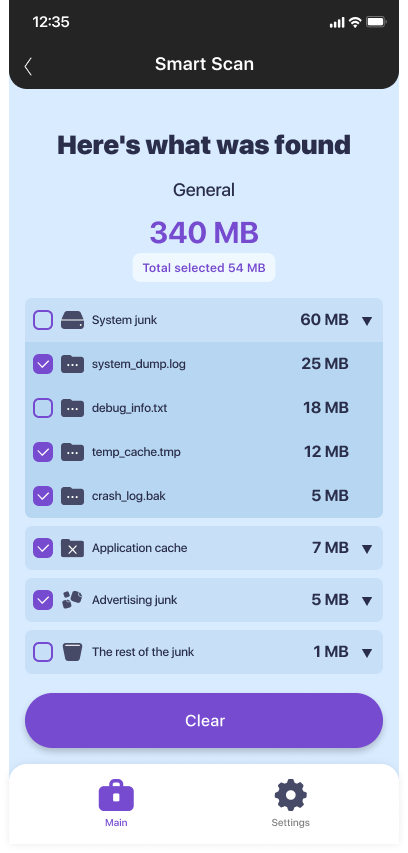
When manually digging through every menu takes too long, JWizard Cleaner steps in – a safe Android cleaning app that finds clutter automatically and sorts it into clear categories.
- Smart Scan: automatically detects APK files, log files, stack traces, and temporary files – everything is sorted into categories so you can delete exactly what you want
- Photo & video duplicate finder: spots both visually similar Android photos and exact copies, letting you remove the extras without any risk of losing the original
- Android Apps Manager: shows which apps are hogging the most space and lets you uninstall the unused ones right from the interface
- Large files: a dedicated category for anything over 1 GB, so you can quickly spot whatever is eating up the most room
Regular cache and temp-file cleanup takes far less time than it seems, especially if you do it once a month instead of waiting until storage is completely full. Moreover, if you’re juggling multiple devices or dealing with this often, it’s worth considering a cross-platform cleaning app that covers every platform from one interface. Ultimately, the key is knowing exactly what’s taking up space and targeting it directly – that way your photos stay untouched, and your storage frees up noticeably.
🔗 You might also like
Frequently Asked Questions
Can I free up Android storage without deleting photos?
Yes – in most cases, cache, temporary files, APKs, and duplicates take up far more space than the photos themselves. Clearing those out can recover several gigabytes without touching your gallery at all. If your gallery is still overflowing, removing duplicate shots is usually enough.
Why doesn’t cleaning with Files by Google free up more space?
Files by Google only removes obvious temporary files. Duplicates, log files, and APKs sitting in non-standard folders go completely unnoticed, which is why results often feel underwhelming. A thorough cleanup requires a tool that scans every category of system clutter.
Is it safe to clear app cache on Android?
Yes – cache holds only temporary data that the app rebuilds the next time you launch it. Your personal data, photos, and settings remain untouched throughout. The only trade-off is that the app might load slightly slower the first time you open it afterward.
How can I find duplicate photos quickly without scrolling through my gallery?
Doing it manually takes a long time and only turns up exact copies. JWizard Cleaner, on the other hand, scans your gallery automatically and catches both exact duplicates and similar Android photos, including burst shots and near-identical frames.