When Android storage fills up, the first instinct is to plug the phone into a PC and sort through files in File Explorer. However, JWizard engineers studied typical device-cleanup scenarios and found something most people miss: File Explorer only removes visible files, while hidden SQLite database caches stay untouched and can eat up to 2GB per app. Below, we break down three real methods – File Explorer on Windows, Phone Link, and cleaning directly on the device – and show exactly where each one falls short, plus how to automate the whole task with JWizard Cleaner.
Table of Contents
- Why Junk Piles Up on Android in the First Place
- Cleaning Android Through Windows File Explorer
- Phone Link: Managing Storage From Your PC
- Clearing Cache Directly on the Device
- JWizard Cleaner: Automated Android Cleanup
- Frequently Asked Questions
Why Junk Piles Up on Android in the First Place
Android generates temporary files, logs, and cache every time an app launches. Over a few months of regular use, this adds up to several gigabytes. Messaging apps, browsers, and streaming services grow the fastest, since each one stores media files, thumbnails, and internal databases separately.
Cleaning Android storage from a computer feels like the obvious fix, mainly because a PC screen gives you a full view of the file structure. The catch is that a chunk of that data is invisible to a standard file browser – especially on Android 14, where system cache access has become more restricted. As a result, manually deleting folders through a PC’s file explorer often breaks app functionality instead of fixing storage.
Cleaning Android Through Windows File Explorer
Connect your phone to the PC with a USB cable and select File Transfer (MTP) on the device screen. Windows will then mount the phone as a removable drive in File Explorer.
Through File Explorer, you can reach the following folders:
- DCIM – photos and videos from the camera
- Download – downloaded files
- Android/data/[app name] – data belonging to specific apps
- Movies, Music, Documents – user media files
To free up space, delete large files from Download and DCIM first. You can also open Android/data and clear out folders for apps you no longer use.
⚠️ File Explorer only sees user files. System cache, logs, and SQLite databases stay completely invisible over MTP – meaning they remain on the device no matter how thoroughly you clean up manually from a PC. On top of that, Android 14 requires extra permission prompts for some Android/data folders, and several directories are locked outright.
Phone Link: Managing Storage From Your PC
Windows 11 supports Phone Link for Android 10 and above, provided both devices share the same Wi-Fi network. The app lets you browse photos, messages, and notifications from your PC without a cable.
Here’s how to set it up:
- Open Phone Link on Windows 11 (search for it in the Start menu).
- On your Android phone, install Link to Windows and sign in with the same Microsoft account.
- Make sure both devices are on the same Wi-Fi network.
- Grant access to photos and files when prompted on your phone.
Phone Link makes it easy to browse and delete photos straight from your PC screen. This comes in handy if you just want to free up storage on Android without dealing with a cable.
The catch: Phone Link only touches photos and videos in your gallery. App cache, temporary files, and logs are completely out of reach – for those, you need a dedicated tool.
Clearing Cache Directly on the Device
Some Android maintenance tasks are simply easier to handle on the phone itself rather than through a PC. System-wide and per-app cache can both be cleared through the built-in settings menu.
On Android 14, the path is: Settings → Storage → Cached data. The system will offer to clear cache for every app at once. To target a single app instead, go to Settings → Apps → select the app → Storage → Clear cache.
The average app cache reaches up to 2GB, so clearing a handful of heavy apps can free up noticeable space. Messaging apps, navigation tools, and streaming services build up cache the fastest.
⚠️ Manual cache clearing through settings doesn’t touch APK files, logs, temporary files, or large attachments. Worse, it doesn’t show you which app is actually hogging the most space – you’re left checking each one by hand.
So how do you find and remove all of this faster, without digging through every app one at a time?
JWizard Cleaner: Automated Android Cleanup
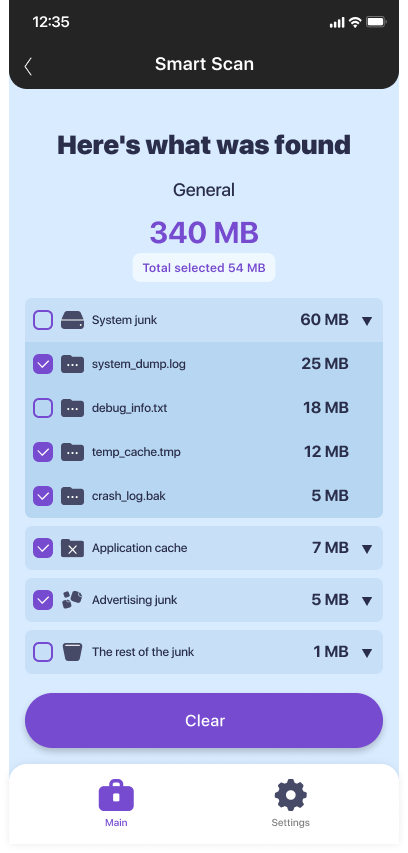
For anyone who keeps an eye on storage regularly, manually digging through settings wastes time. JWizard Cleaner scans the device and sorts everything it finds into categories, so you immediately see what’s actually taking up space.
The app detects four types of files:
- Junk files – APK archives from installed apps
- Log files – log and stacktrace files that pile up in the background
- Temporary files – tmp files and app service data
- Large files – anything over 1GB
If you’re after a single cleaning app that covers multiple devices at once, JWizard Cleaner runs on Android, Windows, macOS, and iOS from one unified interface.
Cleaning Android from a computer via File Explorer or Phone Link covers part of the job – deleting visible files and photos. System cache and logs, however, still require either manual work inside device settings or a specialized tool. Monthly maintenance prevents storage from filling up unexpectedly. That said, if you’re managing multiple devices or repeating this task often, automating it with JWizard Cleaner saves real time on every cycle.
Frequently Asked Questions
Can I fully clean Android from a computer using File Explorer?
File Explorer only gives you access to user files – photos, videos, downloads. System cache, logs, and app databases stay out of reach over MTP. Therefore, cleaning Android from a computer through File Explorer only solves part of the problem.
How is Phone Link different from a USB connection?
Phone Link works over Wi-Fi and skips the cable entirely, but it only shows your gallery. A USB connection through File Explorer, on the other hand, gives you access to the device’s full file structure, including app folders.
Why does junk come back after I clean it up?
Apps create logs and temporary files every time they launch. Cleaning removes what’s already accumulated, but it doesn’t stop the process itself. Regular maintenance – roughly every 1–2 months – keeps storage in check.
Which tool actually shows what’s taking up space on Android?
Built-in Android settings show total space used per app, but they don’t break data down by type. JWizard Cleaner, in contrast, splits everything into four categories – APKs, logs, temporary files, and large files – so you know exactly where to start.