Finding identical files on your phone may sound straightforward, yet a duplicate file finder app for Android uses two separate comparison methods: exact and probabilistic. A checksum hash is used to check videos and other files; they either match or they don’t. Photos are different. They are assessed with a perceptual hash, an algorithm that measures visual similarity as a percentage instead of comparing files byte for byte. That distinction can determine whether a unique shot gets deleted. Below, we’ll explain how to remove duplicates safely and what you should verify before deleting anything.
Table of Contents
- Why Duplicates Pile Up on Android
- Exact Duplicates vs. Similar Photos
- How to Find Exact Duplicates Manually
- How to Check Messenger App Folders
- Why Storage Space Isn’t Fully Freed Up
- What to Do If Deleted Photos Keep Coming Back
- Automatic Duplicate Detection in JWizard Cleaner
- Frequently Asked Questions
Why Duplicates Pile Up on Android
Messaging apps and cloud services are usually responsible for the growing number of duplicate files because they automatically save media copies. Received photos and videos are cached by WhatsApp and Telegram in their own folders. Although those files look identical to the originals in your gallery, they are physically separate files.
Sending a photo to yourself through a messenger just to “save” it is an easy way to create another copy on your storage. Duplicate videos on Android generally arise in the same manner: the same clip gets sent to multiple chats, sometimes more than once.
Exact Duplicates vs. Similar Photos
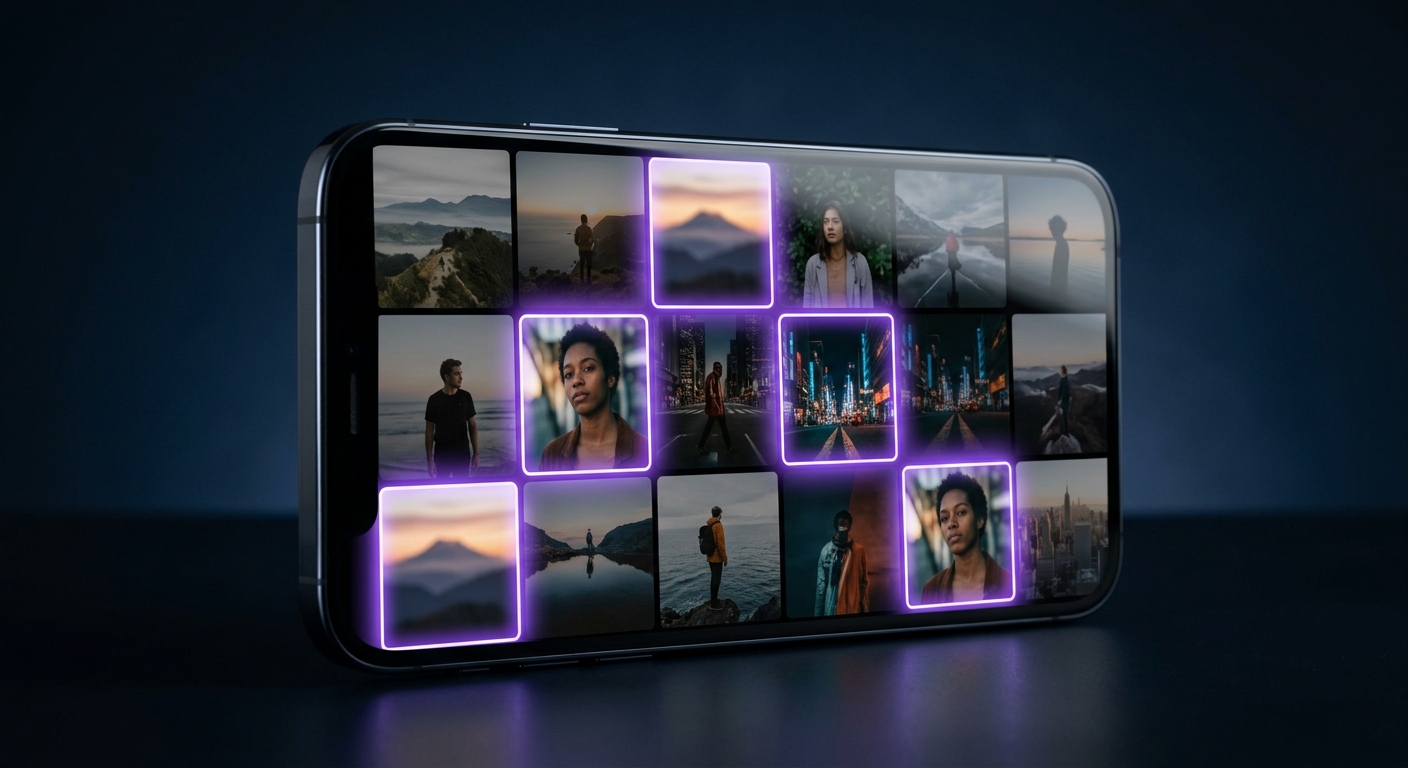
A byte-for-byte match is an exact duplicate, identified through its SHA256 hash. Similar photos are different: they are two separate files that share a high percentage of visual overlap, as determined by perceptual hashing.
That distinction affects the level of risk. Removing similar photos is less dependable than deleting exact copies because the similarity threshold can be adjusted. If you set it too low, different frames from a burst shot may be flagged as duplicates. A setting that is too high, by contrast, can cause genuine copies to be missed. Before deleting a batch of similar photos, manually inspect at least some of the matched pairs.
How to Find Exact Duplicates Manually
Manual checking is time-consuming, but it leaves you in complete control of what gets deleted.
- Sort the media in your gallery by date added after opening it; files added around the same time will then be easier to identify.
- Using a file manager, compare the file sizes. When two files have an identical byte size, that is a strong indication that one is an exact copy.
- Open both files and inspect them visually if their sizes are close but not identical.
- Keep the file with the original resolution and delete the older or lower-quality copy. Because deletion permanently frees the storage space, first confirm that the remaining file opens properly and is not corrupted–a deleted copy cannot be recovered.
Limitation: this method is practical for dozens of files, not thousands. As the gallery gets larger, checking every file by size and date becomes impractical.
How to Check Messenger App Folders
Because messaging apps maintain media storage separately from the system gallery, their folders are often where the extra files accumulate.
- In your file manager, find the folder belonging to the installed messenger in internal storage. It is generally located among the app-specific folders and apart from the system gallery.
- Inside it, inspect both the nested media folder and the separate cache folder. Messengers generally place received photos and videos in one location and temporary cache files in another.
- Compare what these folders contain with the gallery; in many cases, the same shots have simply been saved twice.
- If you want to retain the original, delete the copies from the messenger’s folder instead of the system gallery.
Hidden system folders like
.com.facebook.katanaaren’t always visible in a standard file manager – enable hidden file display, otherwise some copies will go unnoticed.
Limitation: this approach finds copies created within the messenger itself, but it does not clear cache from other apps. A separate pass through your storage settings is therefore needed for a full Android cleanup of system clutter.
Why Storage Space Isn’t Fully Freed Up
The files themselves take up the space recovered when duplicates are deleted; app cache is unaffected because it belongs to a different category of data. It accumulates independently, no matter how many photos and videos are stored in your gallery.
Once the duplicates are gone, inspect hidden folders too, then clear the cache through Settings → System → Storage → Internal storage → Cache. In practice, clearing both duplicates and app cache can free anywhere from 5 to 20 GB, although the exact amount depends on how heavily the device is used.
What to Do If Deleted Photos Keep Coming Back
Background cloud synchronization can make photos return: after they are removed from local storage, the device downloads them again. When sync is active, this is normal behavior for Google Photos.
To make the deletion permanent, disable background sync in Google Photos. Next, remove the account from the device and add it again. Only then will a repeat duplicate cleanup remain in place instead of being undone the next time the device connects to the network.
⚠️ Turning off sync without first checking that the photos you need are already saved to the cloud can cost you access to your backup – make sure your important shots are uploaded before changing account settings.
Automatic Duplicate Detection in JWizard Cleaner
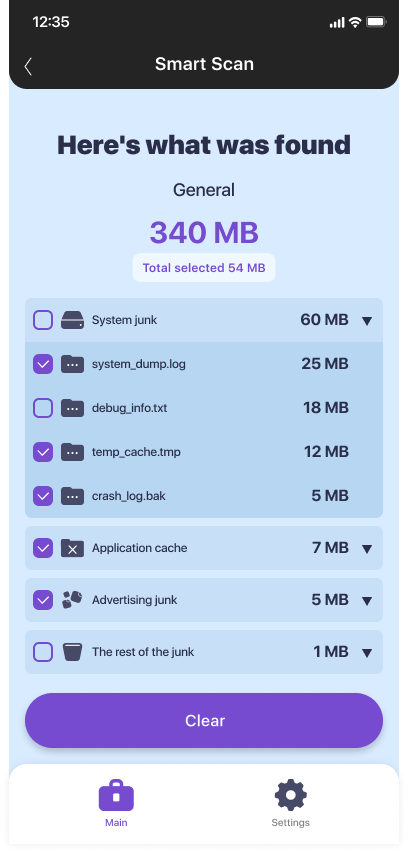
Checking folders and hashes manually works, but repeating the process takes time. JWizard Cleaner handles that specific task–finding and flagging duplicates–while you remain responsible for deciding what to delete.
- You can review and select the duplicate photos and videos it finds before deletion, allowing you to free storage without risking a photo you still need.
- Automatic junk file detection divides results into four categories: unneeded files (APK), log files (log, stacktrace), temporary files (tmp), and large files over 1 GB.
Ultimately, the decision between manual checking and automatic duplicate detection depends on how many files you are prepared to inspect by hand and how often you plan to do it. For a one-time cleanup involving a few messenger folders, manual checking is sufficient. If you regularly optimize storage on Android, though, it is more convenient to let an app flag the duplicates while you retain the final say over deletion.
Frequently Asked Questions
How can I tell an exact duplicate from a similar photo?
A checksum is used for file comparisons, so the result is binary: the files either match or they do not. Photos are evaluated by their degree of visual similarity instead. To decide whether to delete one, you therefore need to examine the match percentage rather than rely on a simple yes-or-no result.
Can I adjust the similarity threshold for finding similar photos myself?
Yes, the similarity threshold for perceptual hashing is adjustable. A value that is too low creates false positives and may lead to genuinely different shots being deleted, whereas a value that is too high allows real copies to go undetected.
What happens if I delete duplicates but leave messenger cache untouched?
Only part of the space will be freed. WhatsApp and Telegram keep their cache separately from the gallery, inside their own app folders. For a noticeable result, you must also clear the cache through your storage settings.
Why do deleted photos reappear in the gallery after a while?
Google Photos may re-download the files from the cloud through background sync, which is why they return. To fix the problem, turn off sync, remove the account from the device, and then add it again.