Many people clean their phone blindly: they tap a “Clean” button and hope that free storage will last for a while. In reality, leftover APK files, system logs, and temporary files account for only part of the problem. Duplicate downloads and messenger backups usually consume the largest amounts of wasted space, yet built-in storage settings don’t always reveal them. Below, you’ll learn how to distinguish safe junk from data you might delete by mistake and configure phone storage cleanup so the space doesn’t fill up again a week later.
Table of Contents
- Why Android Storage Fills Up Again
- Why Manually Clearing App Cache Has Its Limits
- How to Find and Delete Large Files
- What to Do About the Downloads Folder and Messenger Backups
- How to Speed Up Your Phone Using the App Manager
- Cleaning Storage with JWizard Cleaner
- Frequently Asked Questions

Why Android Storage Fills Up Again
Part of what you delete gets rebuilt automatically by the system, which is why storage fills up again. As you use Android, it recreates app cache files. That’s normal OS behavior, not a glitch.
Clearing cache is therefore a little like tidying a room while someone continues dumping in more trash. It reduces the system’s load and frees space for a while, but the source of the clutter remains. The main culprits include leftover APK files from updates, logs and crash traces (log, stacktrace files), temporary tmp files, and messenger media that accumulates over months.
Why Manually Clearing App Cache Has Its Limits
Manually clearing app cache is safe for the system, but its effect doesn’t last: within a few days of use, the cache partially or fully rebuilds. Nothing went wrong when that happens; it’s normal Android behavior.
To clear cache manually, follow these steps:
- Open the apps settings section (usually called Apps or App Management – the exact path depends on your Android version).
- Select the app taking up the most storage.
- Go to Storage and tap Clear Cache.
- Repeat for each large app – messengers, browser, social media.
Only temporary data is removed by this process, not passwords, chat history, or saved files. Limitation: if many apps are installed, the method can take a while, and it does not address system junk such as APK files, logs, and temporary data that builds up separately from cache.
How to Find and Delete Large Files
For a quick storage gain, files over 1 GB are the best targets. Removing one can make a more noticeable difference than clearing dozens of small system files scattered around the device.
To check for large files manually, use this method:
- Open your device’s file manager.
- Sort files by size, largest first.
- Review each file before deleting – among large items you’ll often find work documents, voice recorder recordings, or downloaded lecture files.
- Delete only files you’re certain you won’t need: on most Android versions, deletion is final and does not go through a recycle bin.
Don’t delete a file just because it’s large. A big file isn’t automatically junk – it’s a reason to check it more carefully.
Limitation: when files are spread across different folders and apps, finding large items throughout the system manually can take a long time.
What to Do About the Downloads Folder and Messenger Backups
A significant amount of used space often sits in the Downloads folder and in messengers’ internal storage, but both areas require caution. Clearing duplicate downloads and old screenshots can free more space than removing system cache. However, those same folders may contain a work document or receipt you still need.
Messenger backups, including WhatsApp chat and media archives, may occupy several gigabytes of internal storage. These are user data rather than system cache, which makes them easy to miss during a routine storage cleanup.
Before deleting anything in this category:
- Check the creation date – old screenshots and drafts are usually safe to delete.
- Make sure messenger media is synced to the cloud if it matters to you.
- Don’t delete a backup archive unless you’re sure you won’t need it: there’s no way to restore chat history without it.
Limitation: each file has to be checked manually, and automating this step is difficult without risking data you actually need.
How to Speed Up Your Phone Using the App Manager
By showing which apps use the most storage, the Android app manager helps you deal with the actual source of the problem instead of merely treating its symptom. Low storage is often caused not by cache but by a rarely used app that occupies hundreds of megabytes.
To check this:
- Open Settings → Apps → All Apps.
- Sort the list by size.
- Look for apps you haven’t opened in over a month.
- Uninstall them if you don’t need them, instead of regularly clearing their cache.
Because it lowers the overall load on storage and background processes, this approach usually speeds up your phone more noticeably than a one-off temp file cleanup. Limitation: going through the app list manually requires attention, and an app quietly consuming a lot of space is easy to overlook.
Cleaning Storage with JWizard Cleaner
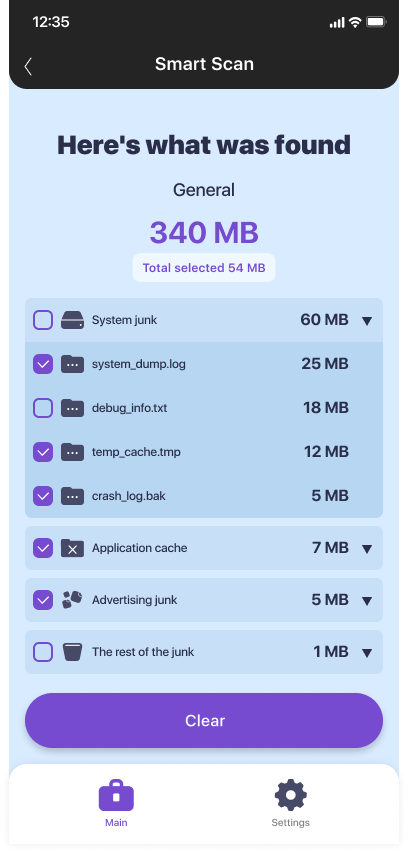
Sorting through folders and settings by hand takes time, and every individual file requires attention. JWizard Cleaner automatically scans the device for unnecessary files and organizes its findings into categories rather than presenting one generic “Clean” button.
- Unnecessary APK files – installation packages left over after app updates.
- Log files – log and stacktrace files accumulated by the system and apps.
- Temporary files – tmp data that holds no value to the user.
- Large files – anything over 1 GB, with the option to review each file before deletion.
By separating junk into categories, the tool addresses the main concern people have during storage cleanup: confusing system junk with data they actually need.
A consistent storage-cleanup routine lasts longer than a single button press because it removes the sources of clutter, not merely the symptom. You can either review folders manually once a month or let the app scan and categorize them. Whichever method you choose, the rule remains the same: review large and structurally important files before deletion.
Frequently Asked Questions
Can you get rid of app cache buildup for good?
No – cache will keep rebuilding as long as you use your apps; that’s built into how Android works. Regular cleanup reduces the amount of accumulated junk, but it doesn’t change that underlying principle.
What happens if you delete a file from the Downloads folder by mistake?
On most Android versions, such files are deleted without passing through a recycle bin, and recovering them without a backup isn’t possible. For that reason, review the file list before a mass deletion instead of sorting by size alone.
How often should you clean phone storage?
As logs and temporary files build up, clear them while using the free space indicator in **Settings** → **Storage** as your guide. Once free space falls below 10%, check large files and apps. During every general storage check, also review messenger backups and the Downloads folder.
How does automatic cleanup differ from manual cleanup in terms of results?
With manual cleanup, you open each app and folder separately. An automatic scan, by contrast, sorts the files it finds into categories immediately – APK, logs, temporary, and large files. The storage freed up is comparable either way; what differs noticeably is the time required.