Android storage fills up quietly. App caches, leftover APK files from old updates, log files, and ad junk from apps you thought you removed all pile up in the background. The built-in storage menu shows totals, but it never tells you what’s actually safe to delete.
JWizard engineers spent time studying how Android 14 handles system storage and found a real limitation: the OS trims detail on temporary files, which means automated cleanup routines frequently miss leftover APKs after an update installs. We tested three approaches side by side – manual cleanup through Settings, file management via PC, and full automation – to see exactly where each one hits a wall.
If you juggle more than one device, or sync your phone with a computer often, it’s worth checking out an android cleaner app with pc support early. That kind of app removes a chunk of the manual routine that’s genuinely annoying to do by hand.
Table of Contents
- Popular Alternatives
- Manual Cleanup Through Android Settings
- Managing Files Through a PC
- How to Slow Down Junk Accumulation
- JWizard Cleaner for Android
- Frequently Asked Questions

Popular Alternatives
There are a few distinct categories on the market: built-in system utilities, standalone cache cleaners, and hybrid cleaners with PC support.
- Android’s built-in storage menu – shows total space used by category, but offers no bulk tools for clearing old APKs or log files.
- Standalone cache cleaner apps – free up space fast, though the cache often comes right back, since apps simply recreate what they need the moment you open them again.
- Cross-platform cleaners – sync file management between your phone and computer, which matters if you move files around often.
The deciding factor when picking a cleaner is whether you can manage your phone’s storage from a computer without keeping a cable plugged in the whole time. If you run multiple devices, one unified interface for memory control beats juggling separate utilities for each.
Of the options above, JWizard Cleaner is the only one that combines Android storage management with PC access in a single interface. If you own one device and clean it rarely, the difference won’t matter much – the built-in tools should cover you. However, once you’re optimizing storage regularly across several devices, switching between separate apps by hand gets old fast. JWizard Cleaner is a paid-license app with more than 50,000 installs.
Manual Cleanup Through Android Settings
The system menu under Settings → Storage → Apps shows how much space each app takes up, cache and data included (⚠️ the exact path may vary depending on your Android version). It’s a solid first step for spotting which apps deserve a closer look.
Here’s what manual cleanup looks like in practice:
- Open Settings → Storage.
- Tap Apps and sort the list by size.
- Open the largest app and tap Clear cache.
- Check your downloads folder for old APK files and delete them manually.
Android’s local storage cache runs on a built-in quota for optimization, so the system sometimes caps how much space an app can occupy on its own. As a result, the difference before and after a cleanup isn’t always dramatic.
The catch: manual cleanup doesn’t distinguish between log files, temporary files, and data that actually matters – you’re left guessing what’s safe to remove, often without enough information to judge the risk.
Managing Files Through a PC
Connecting your phone to a computer, whether by cable or Wi-Fi, lets you browse the Android file system in a regular file explorer and delete large files in bulk. This works well for managing Android files through a PC, especially when you need to track down bulky videos or archives fast.
That said, a computer’s file manager doesn’t show system categories – cache, logs, temp files – the way the OS itself sees them. You end up going by file extension and folder size instead, which raises the odds of deleting something you actually needed.
There’s also a technical reason not to lean on frequent manual cleanups of small files: wear leveling in NAND storage reduces write amplification by spreading write operations dynamically across blocks, but repeated manual deletions of small files still add extra load on the drive. A single centralized cleanup via PC cuts down on these write operations compared to scattered, one-off manual deletions.
⚠️ This method doesn’t automate anything repetitive – next time junk piles up, you’re back to plugging in the cable and digging through folders all over again.
So how do you speed this up?
How to Slow Down Junk Accumulation
Checking your Android storage regularly lowers the odds of hitting a full drive right before an important shoot or a system update. Aim to review the storage section at least every two weeks, not just when your phone starts warning you about low space.
It’s also worth clearing digital clutter right after installing major updates, since that’s exactly when the system leaves behind the most temporary files and old install packages.
JWizard Cleaner for Android
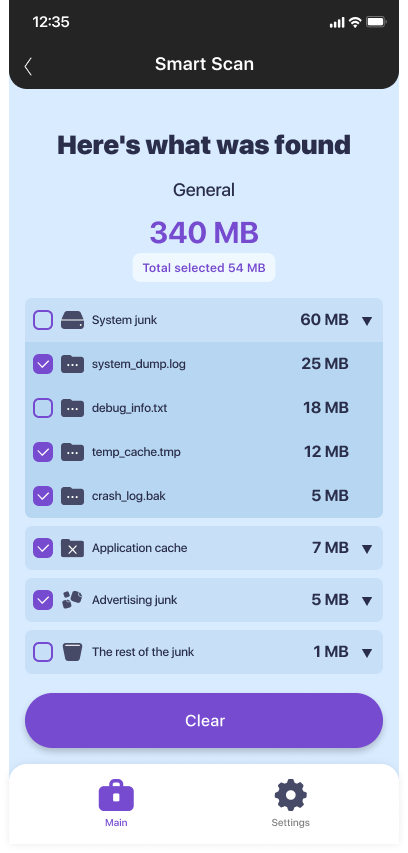
When sorting files into categories by hand takes too long, JWizard Cleaner takes over the job and groups everything it finds automatically. App analysis inside the tool is built so you actually know what you’re deleting, instead of guessing based on a cryptic filename.
- Junk classified into 4 categories: unneeded files (APK), log files (log, stacktrace), temporary files (tmp), and large files over 1 GB.
- Apps Manager: shows which apps are eating the most space and lets you remove them without digging through system settings.
- Automatic cache cleanup: scans run on a schedule, no manual app-by-app checking required.
Whether manual cleanup or automation makes sense depends on how often you actually need it. If you clean your phone once every few months, the built-in settings are probably enough. But if you’re managing several devices and keeping constant tabs on memory, it’s far more practical to rely on one tool that handles file classification for you and keeps your phone’s storage in sync with your computer.
🔗 Related reading
Frequently Asked Questions
Is it safe to clear app cache on Android?
Yes – cache is just temporary data that the app rebuilds the next time you open it. The only downside is the app might load a second slower right after clearing.
How is cleaning through Settings different from an android cleaner app with pc support?
The built-in settings only show general totals by category, with no real explanation. An android cleaner app with pc support adds computer-based storage management and file classification, which speeds up regular smartphone storage optimization considerably.
Why doesn’t storage free up after I delete photos in Google Photos?
Deleted files often land in a trash folder first and keep counting toward your storage stats until they’re permanently removed. Check the trash section separately from your main gallery.
Can JWizard Cleaner replace manually checking apps myself?
The app automates finding and classifying junk, but the final call on removing a specific app still rests with you through Apps Manager. That way, the risk of accidentally deleting something you needed stays low.