Your iPhone says storage is full. You’ve deleted dozens of photos and apps, yet the amount of free space has barely changed. That isn’t a counter glitch. Flash storage has a quirk: a freed sector isn’t rewritten immediately, and the system needs time to perform background optimization. Meanwhile, the “Recently Deleted” album and iCloud sync problems may leave files on your device even after you’ve erased them. This article explains how to free up space on iPhone for real–not merely by deleting photos, but by locating the hidden clutter that iOS’s built-in tools usually leave out.
Table of Contents
- Why iPhone Storage Fills Up So Fast
- How to Clear the “Recently Deleted” Photos Album
- Offloading Apps Instead of Deleting Them
- How to Clear “Other” Storage on iPhone
- Managing iOS Storage with Third-Party Apps
- JWizard Cleaner for iPhone
- Frequently Asked Questions

Why iPhone Storage Fills Up So Fast
It’s not primarily the size of your media library that causes the problem. The bigger issue is how iOS allocates data and holds on to it. Storage is divided into categories such as apps, photos, videos, mail attachments, and iCloud data. Cache files, on the other hand, are grouped into one “Other” category, with no standard way to see exactly what that category contains.
Two effects, in particular, are easy to miss:
- Delayed space recovery. Flash storage needs time to clean a sector in the background after you delete a file. As a result, the available-space figure may not change immediately and sometimes updates only after a few minutes or a restart.
- iCloud sync mismatches. When a photo or document is deleted in the cloud but the sync is interrupted, its local copy remains on the device.
For a clearer view of what’s using your storage, open Settings → General → iPhone Storage. From there, you can see the exact amount assigned to each category and move directly into cleanup.
How to Clear the “Recently Deleted” Photos Album
Photos and videos that you delete are moved to the “Recently Deleted” album rather than disappearing at once. They continue to use storage until you empty that album yourself. This is one of the most common explanations for why iPhone storage “won’t shrink” after you’ve cleared your camera roll.
- Open the Photos app, then go to the Albums tab.
- Open the Recently Deleted album.
- Tap Select → Delete All, or remove individual photos.
- Confirm the deletion. You can’t undo this action, and the files will be erased permanently.
Deleted files remain in the album only for a limited time, but they occupy storage throughout that period. If you need the space urgently, empty the album immediately after deleting your photos rather than waiting.
Limitation: this method handles only media files you’ve actively deleted. It does not find duplicates that accumulated over years of taking photos and were never deleted–Apple Photos can’t automatically search for similar shots across different formats and resolutions.
Offloading Apps Instead of Deleting Them
When you offload an app, the program itself is removed to free its space, while your documents, game saves, and settings remain intact. A complete deletion removes both the app and everything associated with it.
That difference is important in practice. If you seldom open an app but don’t want to lose its chat history or game progress, offloading is the more sensible option.
- Open Settings → General → iPhone Storage.
- Choose an app from the list.
- Tap Offload App. The icon remains on your home screen, and your data stays intact.
- Tap the icon whenever you want the full app back; it will download again from the App Store.
When an app is no longer useful to you, select Delete App instead. Remember, though, that this removes its local data and you cannot recover it unless it has been backed up to the cloud.
Limitation: offloading does not remove the fragmented cache that iOS had already accumulated for the app. Some leftover files remain in the system and continue to count toward “Other,” even though the app itself is no longer installed.
How to Clear “Other” Storage on iPhone
Browser cache, temporary app files, message attachments, and downloads that don’t fit neatly into the photos or apps categories are included in “Other.” Because built-in settings don’t provide a way to clear this data selectively, each source has to be handled separately.
- Safari cache. Go to Settings → Safari → Clear History and Website Data. This cannot be undone: Safari will remove your saved autofill passwords as well as your complete browsing history, and neither can be restored. If your bookmarks matter, export them first. You should also check your passwords in Settings → Passwords so you don’t lose access to sites you need.
- Message attachments. These usually live inside the Messages app. Open a conversation with a contact, select Photos or Documents, and delete large files manually.
- Downloads. Look in the Files app. The local folders section on your device often accumulates documents and media downloaded through your browser or mail.
Downloaded documents and mail attachments are personal files, not system cache. Before removing anything, confirm that important files exist in another backup location; the system will not let you recover them afterward.
Limitation: regular cleanup through Settings cannot reach some app cache because it is hidden deep within the system. That data accumulates again whenever you use the app, so searching for it manually is generally not worth the effort.
Managing iOS Storage with Third-Party Apps
Manual cleanup can become a hassle, and after you’ve worked through every section above, it genuinely may. In that situation, it makes sense to compare the built-in tools with automation.
The same principle extends to other platforms. Similar storage-allocation logic is involved in Mac disk cleanup, where cache is also tucked away in system folders that the average user cannot see.
JWizard Cleaner for iPhone
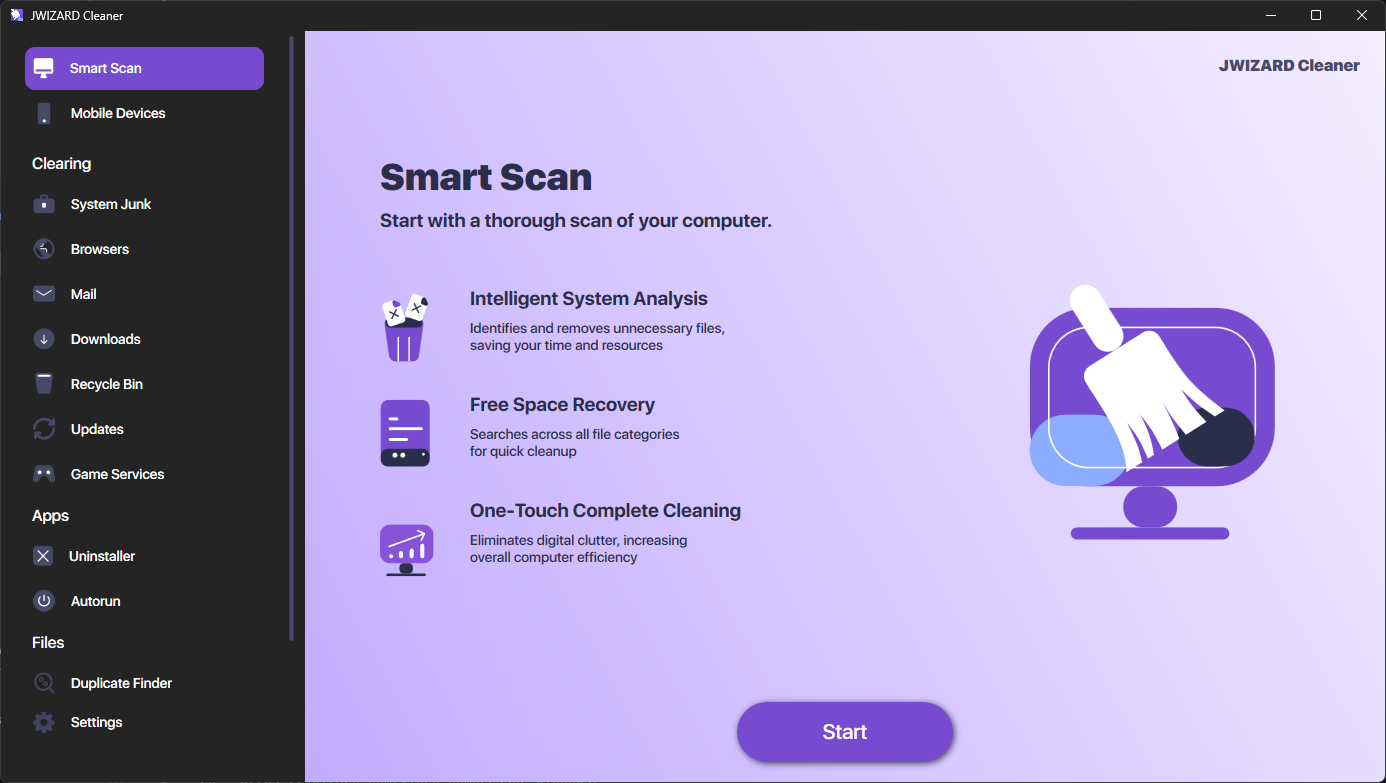
Once you’ve checked every storage section manually and your iPhone is still short on space, the next step is to search automatically for items that are difficult to find by hand. The JWizard Cleaner app for iPhone helps locate similar images and compress videos on iPhone.
- Similar image detection – finds burst shots, screenshots, and duplicates in different resolutions.
- Video compression – reduces clip sizes without requiring you to reinstall every copy from scratch.
The app is not a substitute for offloading programs or emptying “Recently Deleted.” Instead, it handles what remains after those steps: large media files and similar-looking items that are easy to overlook.
Going through every section covered here makes manually freeing up space on iPhone a realistic 15–20 minute task. For a one-time cleanup, that approach works perfectly well. If new photos and videos force you to repeat the process every month, however, automatic duplicate detection and compression can save time. Choose according to how often you need the cleanup, rather than relying on habit.
Frequently Asked Questions
Why doesn’t free space increase right after I delete files?
Sometimes the free-space counter is simply displaying stale data. Open **Settings** → **General** → **iPhone Storage** again and check it. If the figure still hasn’t changed, restart your iPhone to force a recalculation of the space in use.
What’s the difference between offloading an app and deleting it?
An offloaded app can be downloaded again from the App Store a month later, with its documents and saves still in place. A fully deleted app does not come back that way. Your data will return only from a separate cloud backup, if one exists.
Do I need to clear the “Recently Deleted” album separately?
Yes. Photos and videos in that album continue using space for a limited period, until you remove them manually through **Select** → **Delete All**. If you skip this step, the storage cleanup remains only partial.
Is it safe to clean out message attachments and downloads?
Yes, provided you remember that these are personal files rather than system cache. Back up anything important elsewhere before deleting it, because the system won’t restore the files once they’re gone.