You cleared the Temp folder and rebooted the PC, yet drive C is still full. With heavy use, Windows temporary files can grow past 100 GB. Even so, deleting them often frees much less space than expected. The reason is that large crash dump files and app store cache accumulate alongside temporary files, while manual cleanup does not touch them. Let’s examine the differences between temporary files, cache, and update data, then look at how to delete Windows temporary files safely without putting the system at risk.
Table of Contents
- Why Drive C Stays Full Even After Clearing Temp
- Method 1: Clean Up Through Windows Settings
- How to Delete Temporary Files in Windows 11 via the Temp Folder
- What Stops You From Fully Clearing Temporary Files
- Method 2: Checking Hidden System Files
- JWizard Cleaner: Automating Disk Cleanup
- Frequently Asked Questions

Why Drive C Stays Full Even After Clearing Temp
Temporary files account for only part of the clutter, which is why your drive can remain full. Microsoft Store app cache, update packages, and system crash dumps sit alongside them, and standard cleanup reaches none of those categories. Clearing Temp will recover some space, but it does not address the whole picture.
Programs create temporary files as they run: document drafts, unpacked installer archives, and intermediate conversion files are examples. App cache is different. It keeps data for reuse, allowing programs to launch faster. Update files, meanwhile, are packages Windows downloads and temporarily stores on disk until installation. These are three separate mechanisms with three separate storage locations, so clearing one does not resolve the others.
The noticeable difference between the space you expect to recover and the amount you actually regain usually comes from the combination of all three categories, in our experience.
Method 1: Clean Up Through Windows Settings
Windows 11 includes a built-in temporary-file management tool called the “Cleanup recommendations” section. From there, you can see which clutter categories are removable and delete them without installing extra software.
- Open Settings → System → Storage.
- Select Cleanup recommendations.
- Choose the temporary file categories you want to remove.
- To delete the selected data, click Clean up.
By default, Storage Sense in Windows 11 does not delete temporary files automatically. You must either run it manually or configure a separate schedule.
Limitation: hidden app cache, including Microsoft Store data, and large memory dump files stored in hidden system directories are not removed by this method. That is why the drive can look almost as full afterward.
How to Delete Temporary Files in Windows 11 via the Temp Folder
When the built-in tool is not enough, temporary files can be deleted directly from their folder. Windows generally maintains two such folders: one for the system and another for the user.
- Close any programs that are running. Open files can prevent their associated temporary data from being deleted.
- Open the user temporary files folder. It is usually inside your personal user profile, within the internal system directory for apps. The exact path varies by Windows version and account, so check its location through the temporary files properties in the system.
- Check the files for drafts or unsaved data from other programs before deleting anything, because you will not be able to recover those files afterward. Then select everything (Ctrl + A) and delete it (Shift + Delete – the files bypass the Recycle Bin and are removed without an option to restore them).
- A “file in use by another program” error may cause some files to be skipped. That is normal; leave those files alone.
- Repeat the process for the system folder C:\Windows\Temp, this time with administrator rights. Windows processes use this folder, so first close any unnecessary programs and ensure important files have been saved elsewhere. Deletion is permanent, and some contents may belong to unfinished update or installation operations.
A file that Windows refuses to delete is being used by an active process. You can force that process to close through Task Manager, but doing so may interrupt the program before it saves its data and could result in lost unsaved work.
Do not be surprised if some deleted files return within minutes. Background services, browsers, and game services recreate them on the fly while the system is running.
Limitation: manual cleanup does not reach Microsoft Store cache or dump files. Those are stored in other directories and require a separate approach.
What Stops You From Fully Clearing Temporary Files
You may find that the same Temp folder fills up again faster than you can clear it. In many cases, a background process is continuously generating new files, such as an update service or a game client synchronizing its cache.
- Active processes – while a program keeps a file open, that file cannot be deleted.
- Automatic recreation – some temporary files are rebuilt by Windows and certain apps immediately after launch.
- Background services – regardless of how much you have already removed, these services continue writing new data to the Temp directory.
Open Task Manager and check the disk usage tab to identify the process consuming space fastest. If one process is clearly ahead of the others, it is the likely culprit–not the Temp folder itself.
Method 2: Checking Hidden System Files
System or app crashes create large memory dump files, which use the .dmp extension and are stored in hidden system directories. A single file can reach several gigabytes, yet regular Temp cleanup does not see these files at all.
- Use File Explorer options to enable the display of hidden and system files.
- Look through the system directories for large files with the .dmp extension.
- Make sure the file is not associated with a current diagnostic report you intend to send to support before deleting it. Otherwise, the report will become useless.
- If you are unsure what a dump file is for, save a copy in a separate folder before deleting it. Once deleted, the file cannot be recovered. Remove only files you are certain about, since deleting the wrong system file can disrupt crash diagnostics.
Limitation: manually locating dump files is best left to someone comfortable navigating the file system. For most users, the possibility of accidentally deleting a file they still need outweighs the benefit of recovering those gigabytes.
The same “hidden clutter” principle applies to other platforms. For example, cleaning up disk space on a Mac requires a similar approach: system cache is also kept outside the obvious folders, and the built-in tools are often insufficient.
JWizard Cleaner: Automating Disk Cleanup
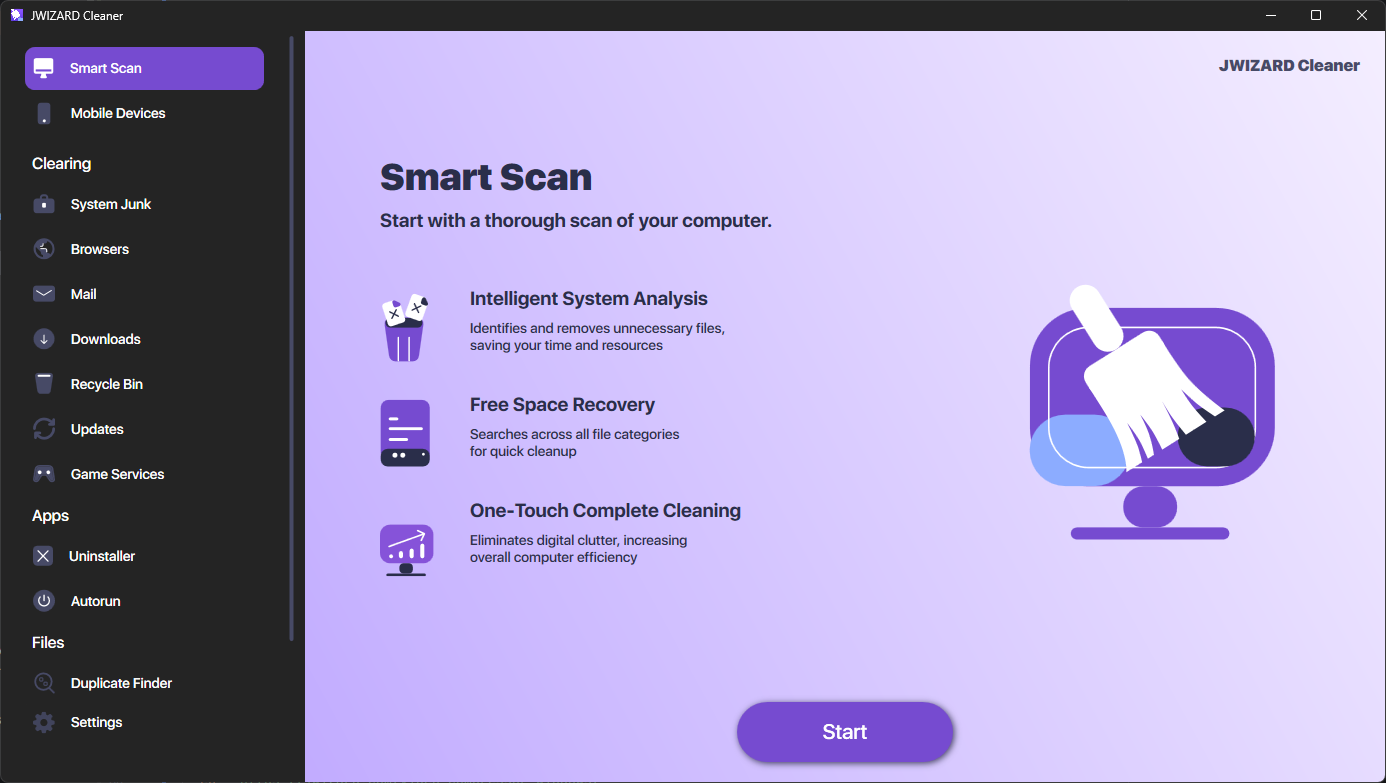
A manual review of Temp folders, cache, and dump files takes time, as well as careful judgment about what can safely be removed. JWizard Cleaner checks the main clutter categories together and shows exactly how much space you can safely free up.
- System junk – temporary files, logs, and installation leftovers.
- Browser data – cache and temporary files from web browsers.
- Email clients – attachments and service data.
- Downloads folder and Recycle Bin – forgotten files that are long overdue for deletion.
- Update cache and gaming services – a hidden category that standard Windows cleanup does not detect.
After a one-time Temp cleanup, the amount of free space will begin to shrink again. Background services and updates doing their work make that normal. Periodic checks, rather than a single cleanup, are the real fix. If handling everything manually feels like a hassle, a combined scan of all clutter categories gets the job done faster. The same reasoning applies when you are working across multiple platforms and figuring out how to clean up a Mac.
The likely reason is that temporary files did not account for most of the occupied space. Microsoft Store cache and large dump files in hidden directories did. These categories require a separate check and are not removed through the regular Temp folder.