Clearing the Safari cache sounds like harmless housekeeping, yet plenty of people put it off, worried they’ll get logged out everywhere and lose their saved passwords. In reality, Safari stores passwords and cache in separate system mechanisms that never overlap during a standard cleanup. Below, we walk through how to clear the Safari cache without deleting passwords using the settings menu, the Develop menu, and Terminal, plus what JWizard Cleaner automates for you.
Table of Contents
- Why Clearing the Cache Doesn’t Touch Your Passwords
- Clearing the Cache Through Privacy Settings
- Clearing the Cache Through the Develop Menu
- Why Sites Keep Asking You to Log In After Clearing the Cache
- What to Do if Safari Still Runs Slow After Clearing the Cache
- JWizard Cleaner
- Frequently Asked Questions

Why Clearing the Cache Doesn’t Touch Your Passwords
Safari keeps passwords in a dedicated system vault, so they aren’t removed when you clear browsing history or website data. Apple’s own documentation confirms this: to delete saved passwords, you have to go into a completely separate passwords section in Settings. Cache, cookies, and history fall into a different data category altogether, physically walled off from your password keychain.
That’s exactly why you can clear the Safari cache without deleting passwords using nothing but built-in macOS tools – as long as you go through the right settings section instead of wiping everything indiscriminately.
- Cache – temporary page files (images, scripts, CSS), stored in ~/Library/Containers/com.apple.Safari/Data/Library/Caches/
- Cookies and site data – session identifiers and site preferences, cleared separately through website data management
- Passwords – a distinct protected vault, untouched by cache or cookie cleanup
Heavy browsing can push the Safari cache into multiple gigabytes: every page you visit caches images, scripts, and CSS, and that data quietly piles up inside the Safari container folder.
Clearing the Cache Through Privacy Settings
The most reliable way to clear the Safari cache without deleting passwords is to manage website data through Privacy settings, bypassing the passwords section entirely.
- Open Safari → Settings → Privacy
- Click Manage Website Data
- Select specific sites, or click Remove All
- Confirm the action
This method wipes the cache and cookies for individual sites but leaves your password keychain untouched – it lives in a separate settings area and needs its own confirmation (Touch ID or your account password).
⚠️ This method doesn’t fully clear the system WebKit cache: some data lingers in hidden system folders and needs manual intervention through Finder or Terminal.
Clearing the Cache Through the Develop Menu
For a deeper cache clean, many people turn to Safari’s hidden Develop menu – it clears data faster than the Privacy interface, though it needs to be switched on first.
- Open Safari → Settings → Advanced
- Enable Show Develop menu in menu bar
- From the menu bar, choose Develop → Empty Caches
This method frees up space quickly and leaves passwords and bookmarks alone. Moreover, it doesn’t touch browsing history or autofill form data – only cache files disappear.
Our engineers, while testing this method, found a limitation worth flagging: WebKit cache often survives inside hidden ~/Library/Caches folders even after using the Develop menu, so a truly full cleanup sometimes requires deleting files manually through Finder.
⚠️ This method won’t fix a recurring logout problem – if sites keep asking you to sign in again, the culprit usually isn’t the cache at all, but third-party cookie blocking, which Safari enables by default.
Why Sites Keep Asking You to Log In After Clearing the Cache
As of 2026, Safari blocks third-party cookies by default, so certain sites can lose your session even without any manual cleanup. If sites started asking you to log in more often right after clearing the cache, check the Request Desktop Website setting – it sometimes conflicts with saved sessions.
To work around this issue:
- Turn off Request Desktop Website in the site’s settings (the aA button in the address bar)
- Clear the cache via Develop → Empty Caches
- Fully quit and relaunch Safari (closing the window alone isn’t enough)
If your Safari data syncs across Mac, iPhone, and iPad, and logins keep falling out of sync between devices, iCloud syncing could be the root cause. You can disable it under Apple ID Settings → iCloud → uncheck Safari.
⚠️ Private Browsing doesn’t guarantee full anonymity either: on macOS in 2026, Private Browsing mode still retains some site settings through system logs and the DNS cache.
Manual cleanup takes time and forces you to bounce between three different settings sections. So, is there a faster way to get the same result?
What to Do if Safari Still Runs Slow After Clearing the Cache
Clearing the cache doesn’t always fix slow page loading. If Safari is still sluggish afterward, the likely cause is an outdated version of macOS or Safari, or a browser extension causing conflicts.
- Update your system: Settings → General → Software Update
- Disable extensions: Safari → Settings → Extensions – turn them off one at a time and check whether speed improves
- Check CPU load: Activity Monitor will reveal whether an extension is quietly hogging resources in the background
Safari extensions affect the cache more than most people realize: they generate their own temporary files, and those aren’t removed by a standard browser cache cleanup.
JWizard Cleaner
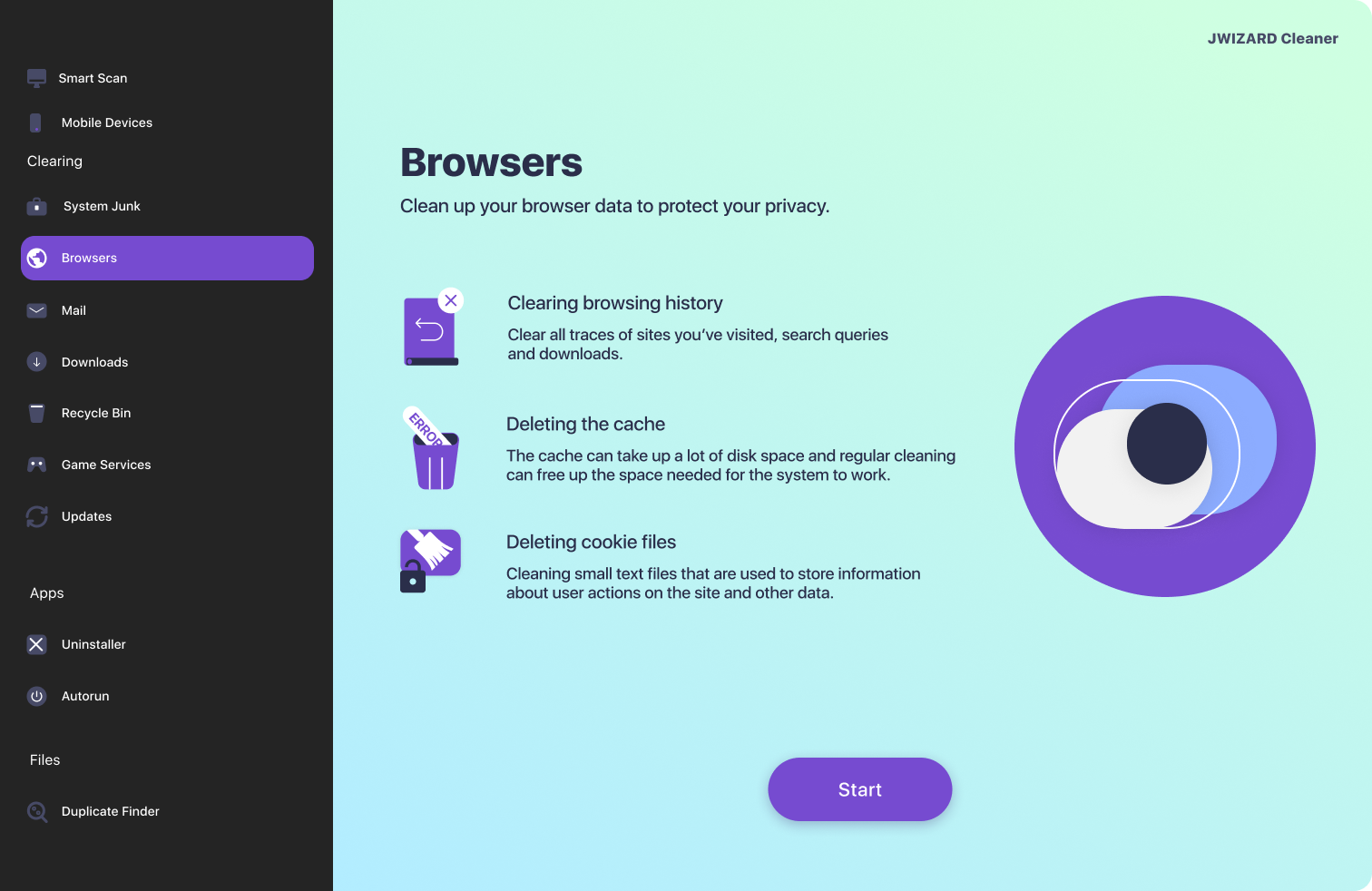
When you need to clear cache, history, and cookies across every browser installed on your Mac at once, without digging through each one’s settings individually, JWizard Cleaner handles exactly that. The app finds and removes browser clutter without touching passwords – they stay locked in macOS’s separate protected vault regardless of what happens in the interface.
- History and search query cleanup – clears your visited-page log and typed search entries
- Download history cleanup – removes download records without deleting the actual downloaded files
- Cache and cookie removal – frees up space taken up by temporary site data
- File sorting by size – in the Downloads and Trash folders, so the heaviest items are the first to go
Over 50,000 users rely on JWizard Cleaner for routine browser cleanup on Mac, so they don’t have to manually navigate privacy settings every single time.
Regular cache cleanup won’t solve everything: some site data still lingers in system logs and the DNS cache, even in Private Browsing mode. Built-in tools can’t deliver full anonymity, but a sensible balance between freed-up space and smooth site logins is well within reach. That said, if this is a task you repeat often across multiple browsers, manual steps through settings get old fast – that’s when automation genuinely pays off.
🔗 Read also
Frequently Asked Questions
Can I clear the Safari cache without deleting my passwords?
Yes – passwords are stored in a separate protected macOS vault and aren’t affected when you clear cache, history, or website data through standard settings. Deleting passwords requires manually opening a dedicated passwords section instead.
Why doesn’t the Safari cache clear completely?
Standard cleanup through the Develop menu sometimes fails to remove the entire WebKit cache – some files remain in hidden system folders. For a truly complete cleanup, you’ll need to manually check the cache folder through Finder or use a dedicated tool.
Why does Safari still run slow after clearing the cache?
Clearing the cache doesn’t fix issues caused by an outdated system or conflicting extensions. In that case, updating both macOS and Safari, along with disabling extensions one by one, usually helps.
How is JWizard Cleaner different from manual cleanup?
JWizard Cleaner clears cache, history, and cookies across every installed browser in a single pass, without touching passwords or other data categories. Manual cleanup, by contrast, requires switching between settings sections separately for each browser.