Cache files, temp data, and duplicate photos pile up on every device you own – at the same time, yet each OS handles cleanup differently. Analysts already see where this is headed: by 2028, smartphone cache is expected to grow by up to 40GB a month, driven by streaming video and messaging apps. Here’s how cleanup actually works on Mac, Windows, Android, and iPhone – and why manual methods behave so differently from one platform to the next.
Table of Contents
- Where Digital Clutter Actually Comes From
- Cleaning Up macOS
- Cleaning Up Windows 11
- Cleaning Up Android
- Cleaning Up iPhone
- Comparing Your Cleanup Options
- JWizard Cleaner for All Your Devices
- Frequently Asked Questions

Where Digital Clutter Actually Comes From
Digital clutter forms from app caches, system temp files, logs, and duplicate media. On phones, messaging apps are usually the main culprit: WhatsApp and Telegram caches can eat up several gigabytes thanks to auto-downloaded photos and videos. On computers, the list grows to include system logs, update leftovers, and browser temp folders.
The mechanism differs by platform, but the outcome is identical – free space quietly shrinks with no obvious trigger. As a result, most people only notice once the system throws up a low-storage warning.
Cleaning Up macOS
On macOS, system junk hides across several folders: app caches, logs, and leftover update files. Manual cleanup means opening Finder → Go → Library, then working through the Caches and Logs subfolders one by one.
The catch is that macOS locks certain files while their app is running, so you need to fully quit the app first. Moreover, the system gives you no indication of which files are safe to delete and which belong to active processes.
⚠️ Manual cleanup works fine for a one-off tidy-up, but it won’t catch cache building back up over time. If you need regular Mac maintenance without risking system files, an automated tool is the simpler route – more on that below. For the full manual walkthrough, see our guide on cleaning up a Mac.
Cleaning Up Windows 11
Storage Sense in Windows 11 automatically clears temp files and frees up space before installing updates. Manually deleting temp files via Settings → System → Storage gives you more control, but it skips Storage Sense’s automation entirely.
Sometimes files in the temp folder refuse to delete, throwing an access error instead. In that case, you’ll need an elevated command prompt or a dedicated file-unlocking tool – a regular delete through File Explorer simply won’t work.
⚠️ Storage Sense runs on a schedule rather than on demand – if you need space freed up right now, you’ll still have to trigger cleanup manually. For a deeper look at this mechanism, check our guide on clearing browser data, since browser cache is often the single biggest space hog on the drive.
Cleaning Up Android
Clearing app cache on Android frees up temporary data safely, whereas clearing system files can reclaim more space but risks destabilizing the system. The distinction matters: cache is fine to clear regularly, system files are not.
Telegram deserves its own callout here: its cache can keep growing even after you clear it, thanks to auto-download settings for media. You can clear it manually via Settings → Data and Storage → Storage Usage, but that doesn’t disable auto-download – the cache will simply start filling up again.
On top of that, Android’s built-in cleanup tools often miss APK files left behind after manually installing apps. These sit quietly taking up space until you check the downloads folder yourself.
⚠️ Clearing cache through system settings only solves the problem temporarily, and only for one app at a time – scanning every junk category across the whole device at once requires a dedicated tool. For app-specific steps, see our guide on cleaning up Android.
Cleaning Up iPhone
System data in iOS 18 covers system cache and other temp files; to see the breakdown, go to Settings → General → iPhone Storage. This is the only built-in way to see exactly how much space each category takes up.
Duplicate photos are their own headache. Google Photos can create repeats due to sync glitches, and deleted duplicates often reappear after the next sync cycle. The fix is to temporarily pause sync and check your cloud storage for duplicates manually – otherwise the cycle just repeats itself.
⚠️ The iPhone Storage screen shows you how much data you have, but it offers no tool for finding visually similar photos – only generic system prompts like “Optimize Storage.” For a detailed breakdown of duplicate-finding methods, see our guide on removing duplicate photos on iPhone.
So how do you speed this up when you’re juggling multiple devices, each with its own flavor of clutter?
Comparing Your Cleanup Options
The main thing to look for in a cleanup tool is cross-platform support: if your setup includes a Mac, a Windows laptop, and a smartphone, keeping track of three separate cleanup routines gets old fast.
Of all these options, only JWizard Cleaner handles digital clutter across multiple platforms from one interface, with no need to hop between different system settings menus. Windows and mobile built-in tools handle the basics well enough on their own turf, but they’re blind to what’s happening on your other devices. If you only own one device, that gap barely matters – however, once you’re managing several, the manual approach ends up costing more time than the cleanup itself.
JWizard Cleaner for All Your Devices
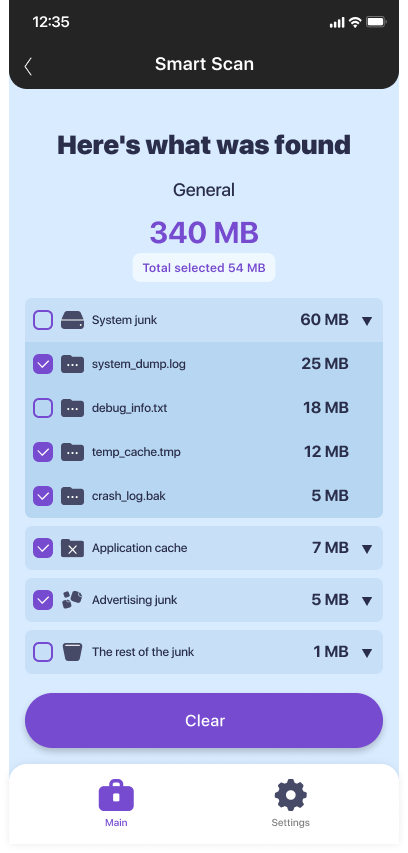
JWizard Cleaner scans your device and sorts what it finds into four categories, so you always know what’s being deleted and why. Duplicate photos are identified through perceptual hash comparison – anything above a 95% similarity match counts as a duplicate, rather than requiring an exact file match.
- Junk files – including APK files left over from manual app installs
- Log files – logs and stacktraces that quietly accumulate over time
- Temporary files – tmp files and leftover process data
- Large files – anything over 1GB
- Duplicate media – photos and images matched by perceptual hash, video and audio matched by SHA256
When you’re traveling, your gallery fills up fast with near-identical shots from slightly different angles – exactly the kind of scenario that’s led more than 50,000 users to keep JWizard Cleaner installed permanently.
Freeing up storage on your disk or phone isn’t a one-time win – it’s really a matter of habit, since clutter builds back up within a few weeks of regular use. A single cleanup before selling a device is easy enough to do by hand, but keeping several devices tidy on an ongoing basis makes far more sense to automate. Which approach fits best ultimately depends on how often the task repeats and how many devices you’re keeping in check at once.
Frequently Asked Questions
Can I clear all digital clutter on every device with one action?
Not entirely in a single action – each OS stores cache and logs in its own format. That said, a comprehensive scanner like JWizard Cleaner speeds up the process on each device individually, without you having to hunt down folders manually.
Why does Telegram’s cache keep growing even after I clear it?
The cause is media auto-download, which keeps running after you clear the cache. The only way to stop it is through the app’s own auto-download settings, not through a system-level cleanup.
What’s the difference between clearing cache and clearing system files on Android?
Clearing cache is safe and frees up temporary app data with no risk to the system. Clearing system files can free up more space, but it can also affect how stable the device is.
How do I stop duplicate photos from coming back after I delete them?
If you use cloud sync like Google Photos, duplicates can reappear after the next sync. It’s worth pausing sync temporarily and checking your cloud storage separately before deleting anything.