App cache on Android builds up quietly: you never see it happening, yet storage keeps shrinking. Projections for 2026 suggest an active user accumulates roughly 10 GB of cache per week – and that’s without installing a single new app.
JWizard engineers, while studying how Android handles storage, found that a single app’s cache can exceed 1 GB, with some apps reaching 1.5 GB or more. As a result, knowing how to clear cache on Android without putting your data at risk matters for practically every smartphone owner.
We broke this down into three scenarios: clearing cache through system settings, understanding the difference between cache and app data, and automating the process with JWizard Cleaner.
Table of Contents
- Why Android App Cache Keeps Growing
- Cache vs. App Data: What’s the Real Difference
- How to Clear App Cache Safely
- When Clearing Cache Won’t Help
- JWizard Cleaner for Smart Android Cleanup
- Frequently Asked Questions

Why Android App Cache Keeps Growing
Android app cache grows because background processes never really stop: apps save image thumbnails, temporary download files, and data meant to speed up the next launch. Every time you open an app, it adds fresh files to the cache, which is why Android cache rebuilds itself almost immediately after a cleanup. By 2026, cache growth among active Android users is expected to hit 10 GB a week.
The main sources of buildup:
- Media apps – store photo and video previews so galleries and feeds scroll smoothly.
- Browsers – cache website elements so pages load faster on repeat visits.
- Messaging apps – keep local copies of chat media, including files you’ve already viewed.
- Games – write temporary level and texture data straight to internal storage.
Therefore, managing Android storage calls for regular checkups, not a single one-off clean.
Cache vs. App Data: What’s the Real Difference
Cache consists of temporary files an app creates to run faster; data covers your settings, accounts, and saved progress. Clearing cache frees up temporary files with zero consequences for the app itself. Clearing data, on the other hand, wipes everything – settings and login history included – so the app effectively resets to its first-launch state.
This distinction explains exactly how cache differs from app data in practice:
In other words, freeing up Android storage without losing photos is only possible through cache – never through data.
How to Clear App Cache Safely
On Android 14, you can clear an app’s cache through system settings alone, no third-party tools required. The method is safe because it only touches temporary files, never your personal data. The steps stay largely the same across recent Android versions, although menu labels may shift slightly depending on your device (⚠️).
- Open Settings on your device.
- Go to Apps → See all apps.
- Select the app you want from the list.
- Open Storage & cache.
- Tap Clear cache.
Repeat these steps for each app that’s hogging space – stock Android settings don’t offer a single button for bulk cache clearing.
If your goal is to clear Android cache without losing data, never tap “Clear data” instead of “Clear cache” – these are two different buttons with two very different outcomes.
⚠️ Limitation of this method: manually clearing app cache on Android does free up meaningful space, but it has to be repeated app by app. Stock Android settings simply don’t include a tool for clearing cache across every app at once.
When Clearing Cache Won’t Help
Clearing cache won’t fix a storage shortage if the real culprit is large files – videos, app installer packages, downloaded documents. In that case, you can wipe the cache completely and barely notice a difference, because the bulk of the space is taken up by permanent files, not temporary ones.
Android cleaner apps often limit themselves to cache and temporary files, leaving large app data and system files untouched – as a result, the storage problem only gets partially solved. Before clearing cache, it’s worth checking for large files or updating your apps: an outdated app version, not the cache itself, is frequently the real reason behind slowdowns and storage bloat.
Signs the problem isn’t the cache:
- The app still weighs several gigabytes even after clearing its cache.
- Free space barely budges.
- The Storage section shows large videos or documents sitting inside the app.
So how do you get this done faster – without the risk of missing a folder that actually matters?
JWizard Cleaner for Smart Android Cleanup
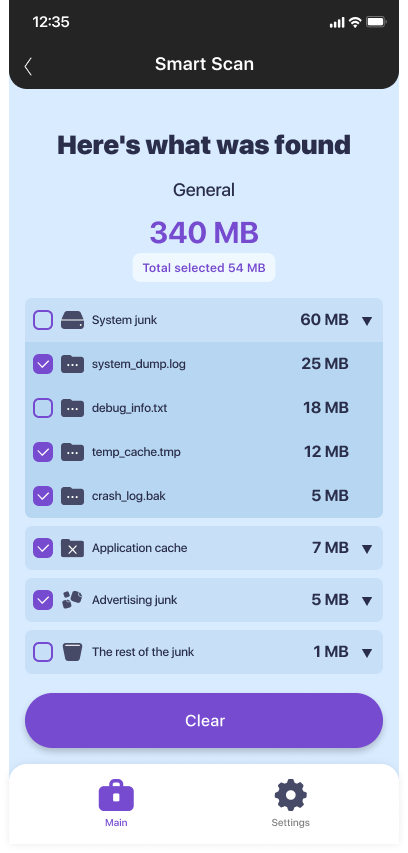
Manually going through every app’s settings takes time, especially once your phone hosts over a hundred apps. JWizard Cleaner runs a comprehensive scan for unnecessary files on your device and sorts everything it finds into categories, so you always see exactly what’s being deleted.
- Junk files – leftover APK installer packages that stick around after updates.
- Log files – logs and stack-trace files an average user never needs.
- Temporary files – tmp files and other technical clutter.
- Large files – anything over 1 GB, including forgotten videos and downloads.
This kind of breakdown removes the biggest fear people have about a safe Android cleaner: accidentally touching important data instead of cache. Over 50,000 users already rely on JWizard Cleaner to keep tabs on their Android storage.
Regular storage checkups save time in the long run: the less cache piles up, the lower the risk that genuinely important large files get lost in the clutter. Ultimately, the right method depends on your habits – a one-off clean before a trip works fine manually, while ongoing storage control is easier to automate.
Frequently Asked Questions
Can you clear Android cache without losing data?
Yes, clearing cache doesn’t touch accounts, settings, or saved progress – that data is stored separately. The only risk comes from tapping “Clear data” instead of “Clear cache.”
Why does cache fill up again right after clearing it?
Because apps generate temporary files every time they launch – that’s simply part of how they work. Android cache rebuilds itself almost instantly, so clearing it is something you repeat periodically, not a one-time fix.
What if clearing cache didn’t free up any space?
Check whether large files – videos, documents, or outdated app versions – are the real space hogs. In that case, a comprehensive scan for unnecessary files helps, since it flags large files as their own separate category right away.
Do you have to clear cache manually for every single app?
Manually, yes – stock Android settings don’t support bulk clearing. However, JWizard Cleaner automates the process and surfaces every junk category at once.